Form pages
/f/<id> for signed-in members, with the header, grid, theme, lookups and buttons. Submissions are listed, exported to CSV and kept as long as you choose.
Forms
Design a form on a grid, with lookups into your data and APIs, file uploads, buttons, a header and your theme. Give it its own page and a QR code, start a workflow every time it is submitted, and use each value in the steps that follow — checked on the server, whoever sends it.
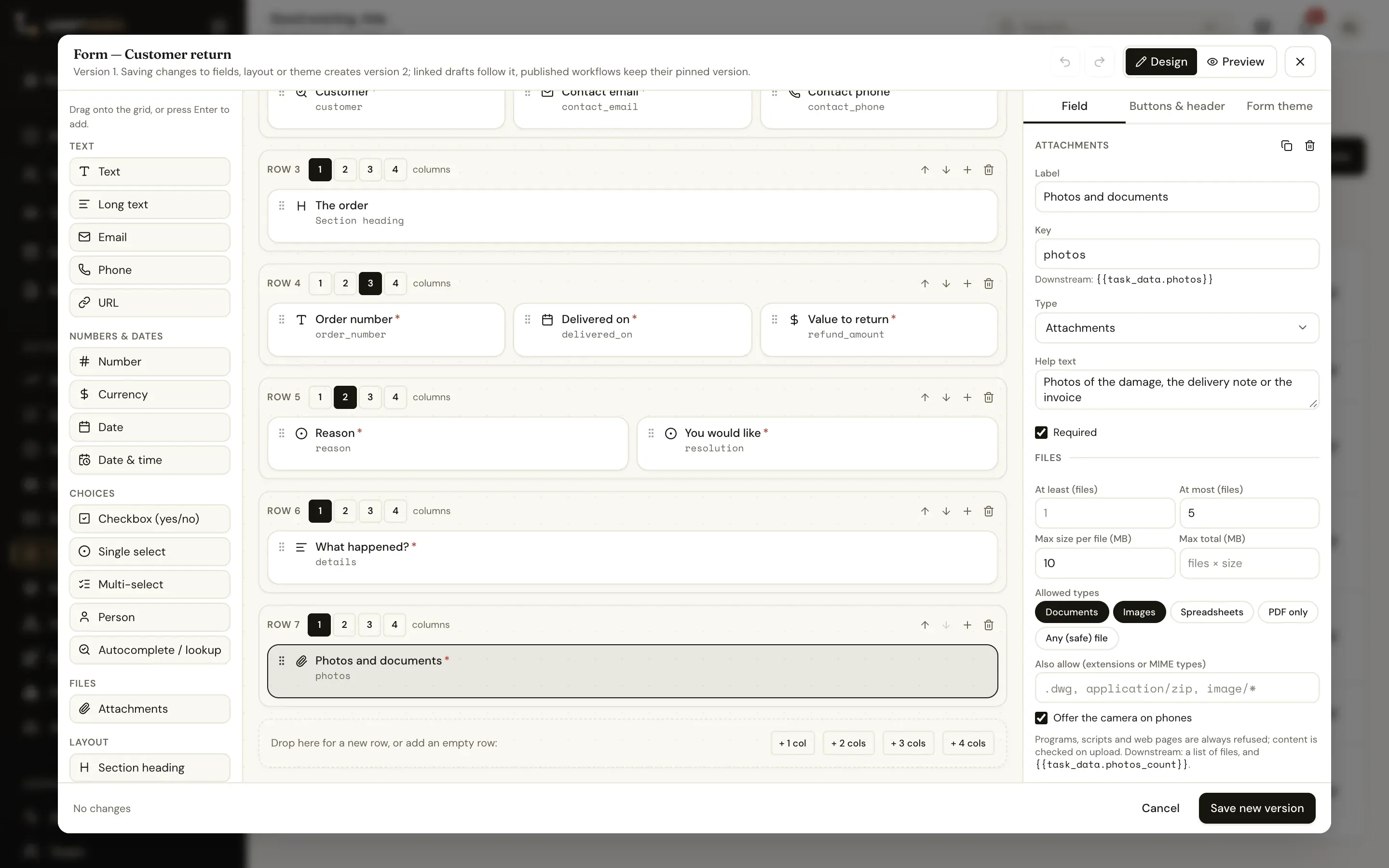
Grid designer
Rows of one to four columns, fields that span them, section headings and dividers. On a phone every row collapses to one column, so one layout serves the desk and the warehouse floor.
contact_email) and rename safely: references in later steps are listed and updated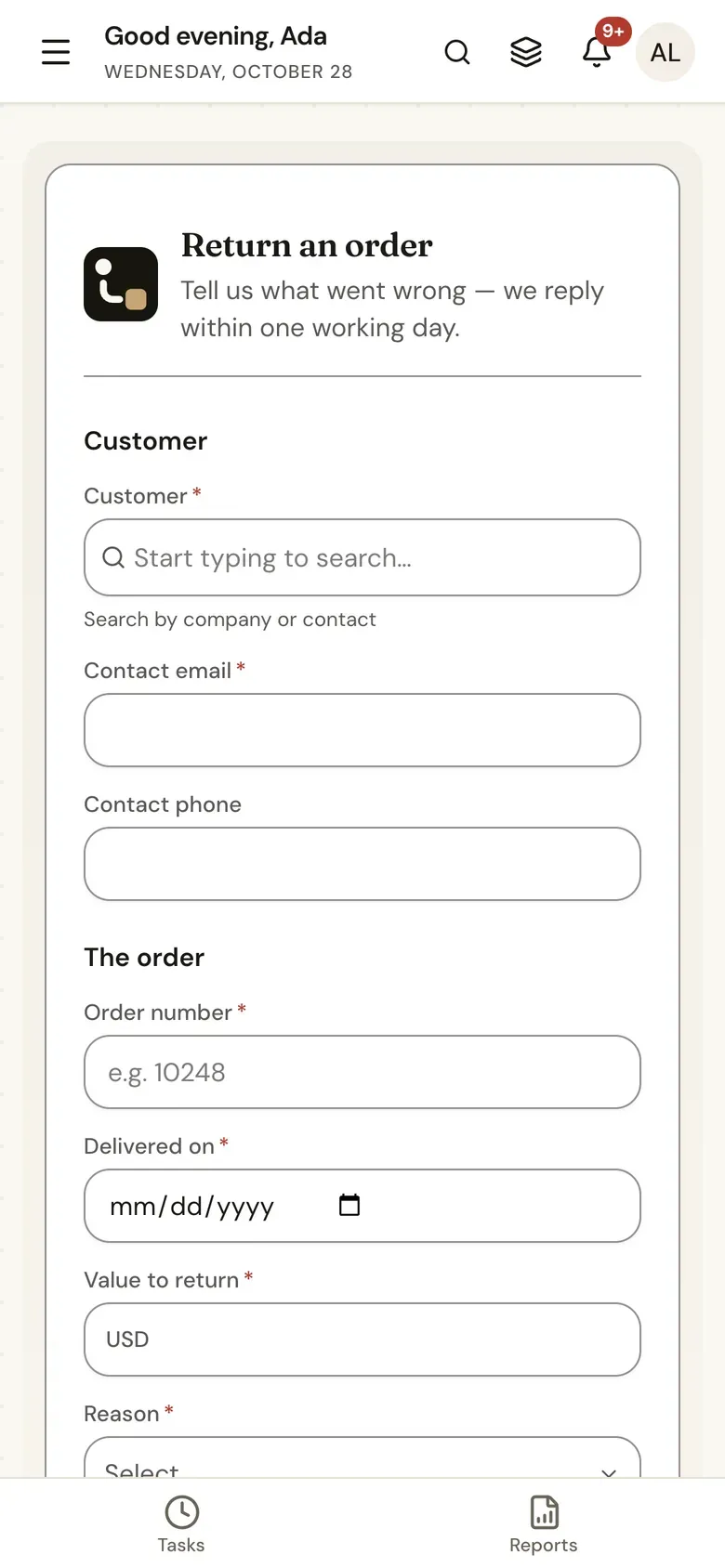
Field types
Seventeen types, each with its own validation, help text, default value (expressions welcome), read-only and visible when rules.
An autocomplete field suggests as people type — from a data table, or from any API reference you have connected. Picking a customer can fill in their email and phone.
{{task_data.region}}) or workflow variables{{form.customer_item}}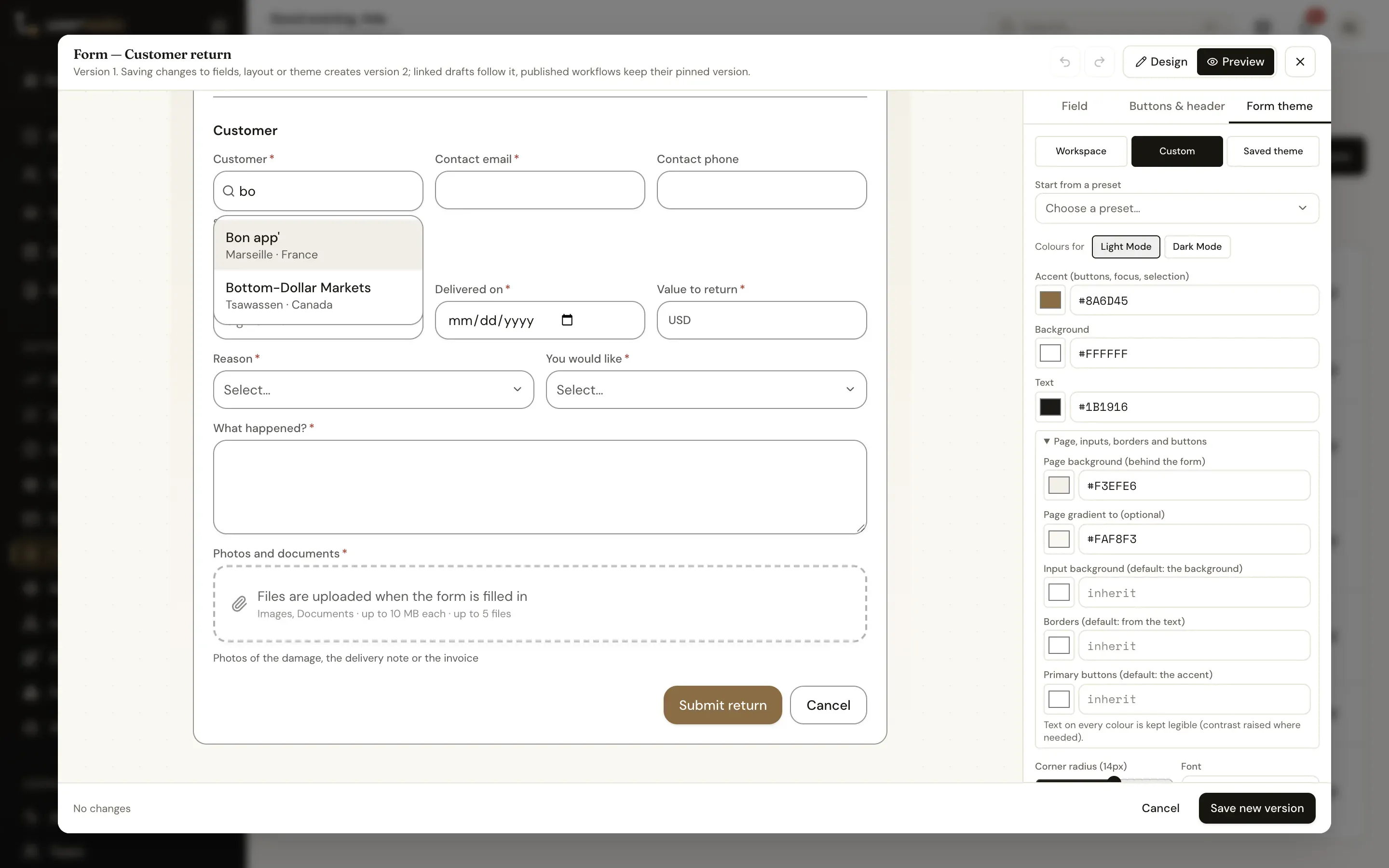
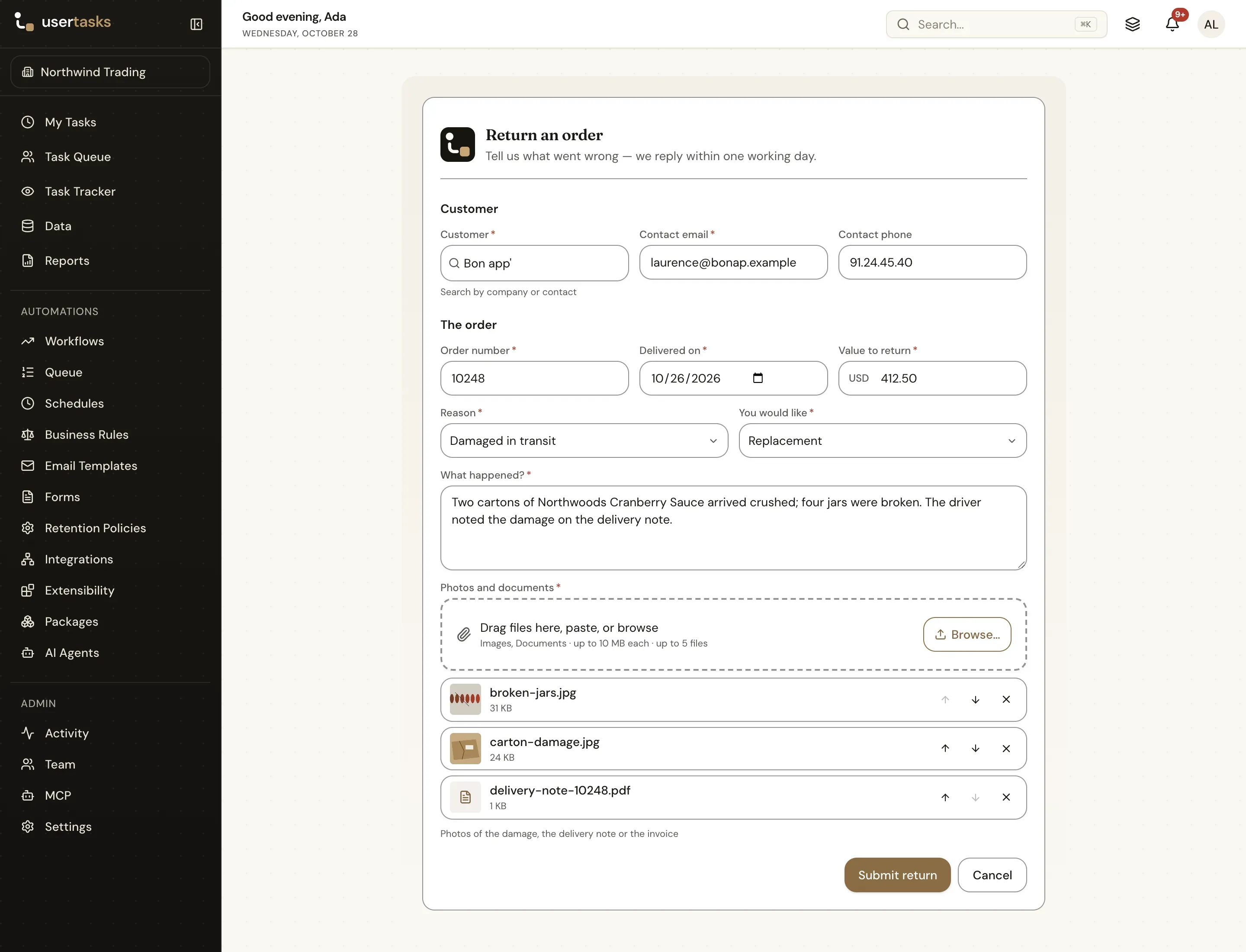
Attachments
Drag files in, paste them, browse, or use the camera on a phone. Each file shows its progress and can be retried, reordered or removed.
{{form.photos}}, email them, upload them to S3 or SharePoint, or give them to an AI agentThen read them: document actions turn an uploaded Word, Excel, PowerPoint or PDF file into text, rows and structure in the next step.
Buttons, behaviours and headers
Rename buttons, style them, add outcome buttons that complete a task, a Save draft button or more submit buttons. Each one runs its steps in order — and a header with your logo, a title and a subtitle sits above the fields.
A message under the form, with the submitted values filled in.
Replace the form with a title, text and a Submit another, Close or link button.
Start any workflow with the form's values mapped to its inputs — on the server, attributed to whoever submitted.
Go to an app page or an address on your allow list.
Close the form.
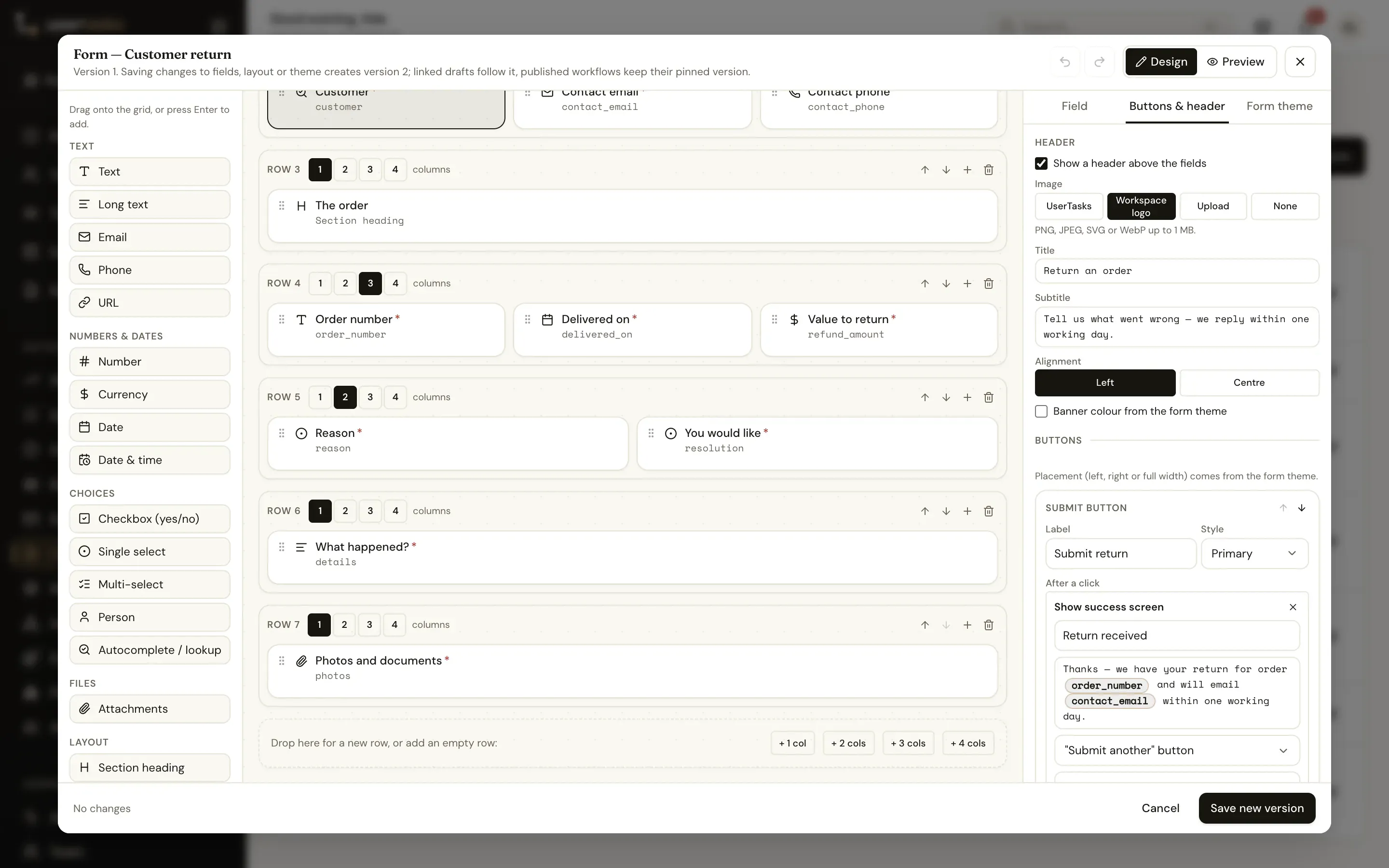
Typical chains: Submit → Start workflow → Show success screen with the run reference. A double-click records one submission.
Themes
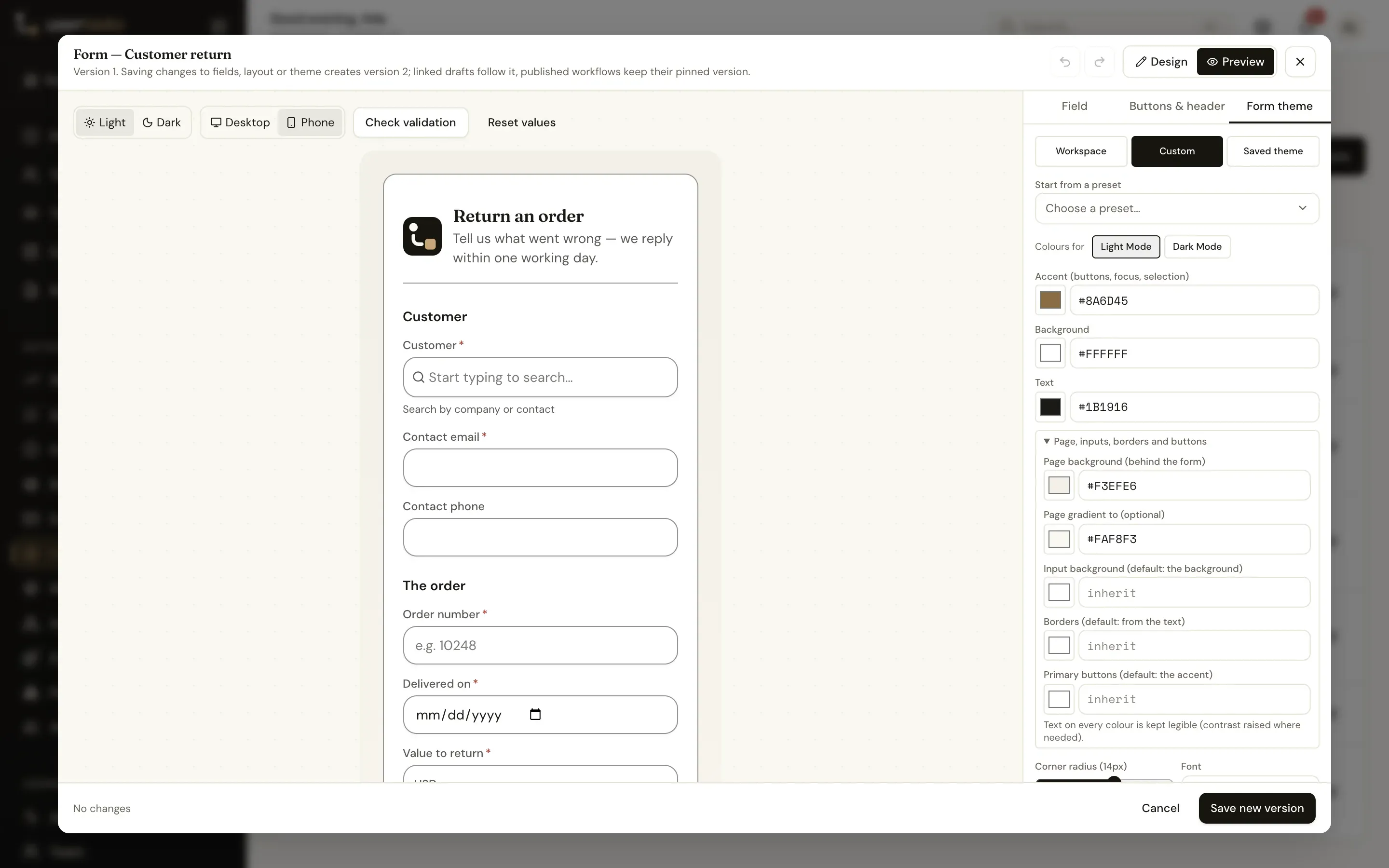
Forms follow your workspace theme in light and dark. Give one a mini theme — accent, page background or gradient, inputs, borders, buttons, radius, font, density, label position — and it applies to the page, the task, the preview and the success screen.
Form pages and the Form submitted trigger
Every reusable form has its own page. Share the link, print the QR code on a poster or a tablet stand, and let the Form submitted trigger start a workflow with the values.
/f/<id> for signed-in members, with the header, grid, theme, lookups and buttons. Submissions are listed, exported to CSV and kept as long as you choose.
Download PNG or SVG, with or without the name and link under the code. Dark on a white card with a quiet zone, so it scans on screen and in print.
Turn a workflow's start form into a page in one click. It stays in sync with the published version and starts the workflow as the person who submits.
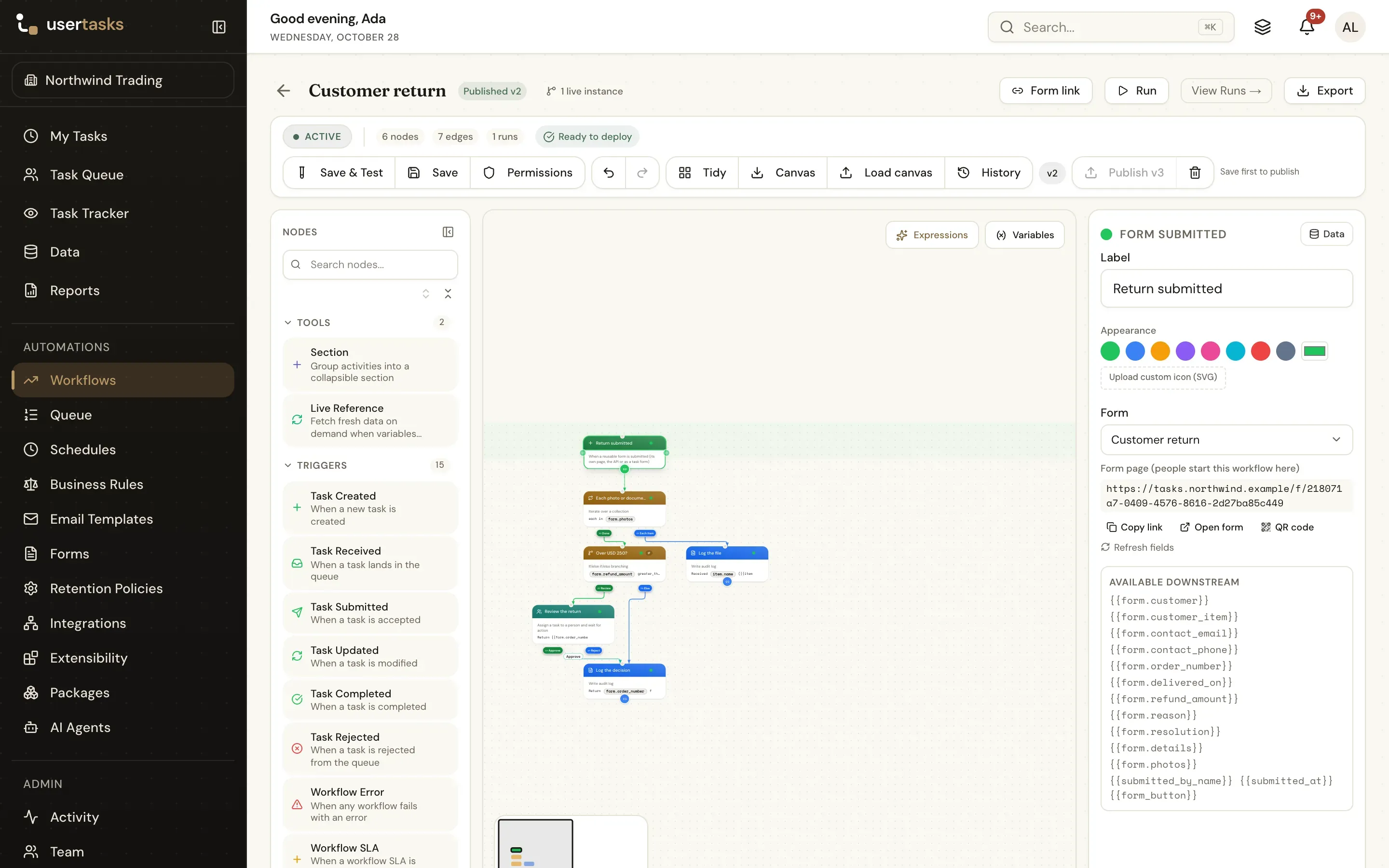
The Form submitted trigger Form pages and QR codes Publish as form page
Values downstream
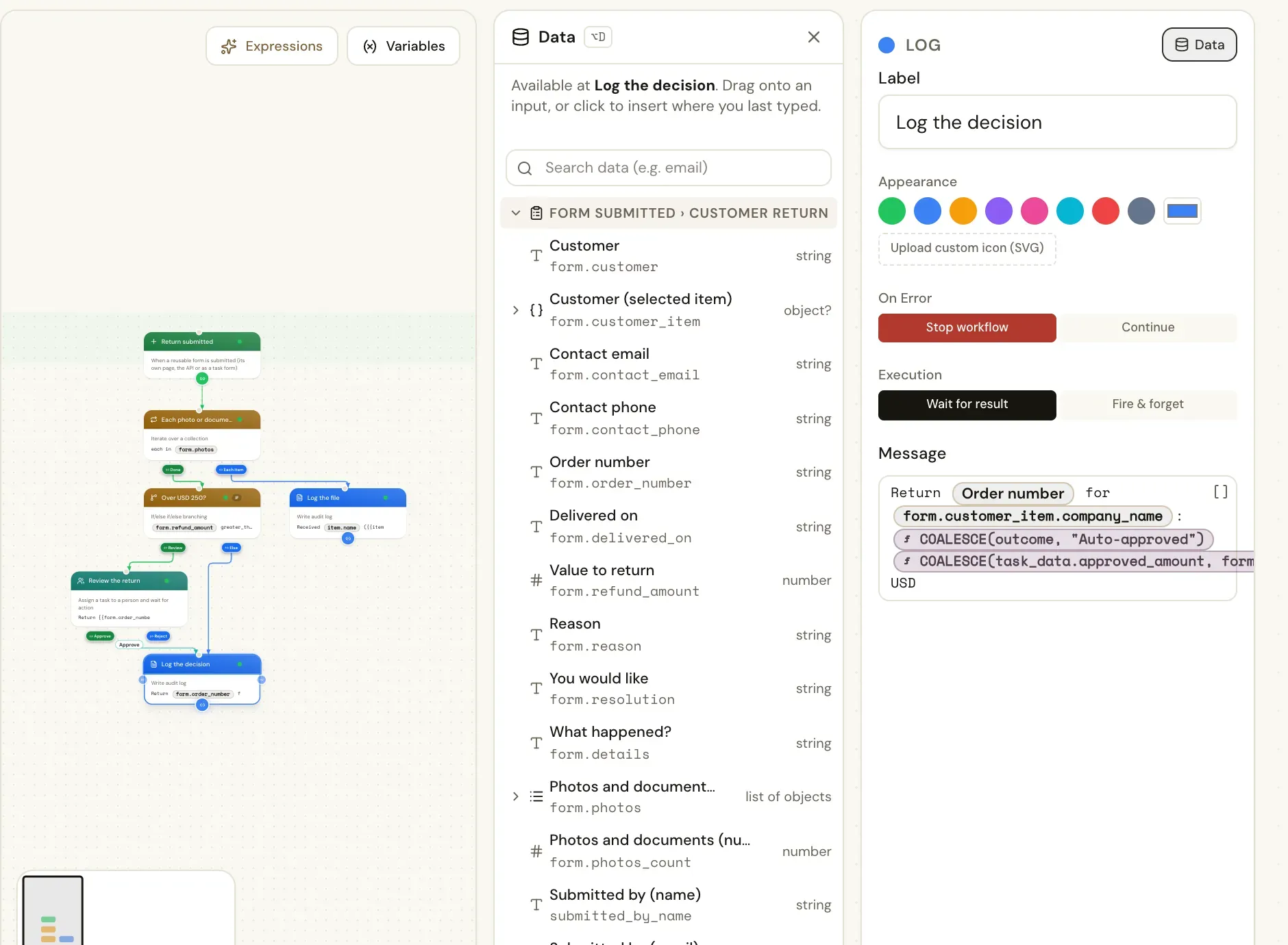
The Data panel lists the form's fields first — label, key and type — at every step. Drag one onto a setting, or click to insert it.
{{form.order_number}}          "10248"
{{form.refund_amount}}         412.5
{{form.customer_item.city}}    "Marseille"
{{form.photos_count}}          3
{{task_data.approved_amount}} after a User TaskReuse, version and test
Search and tag forms, see which steps use each one, duplicate, export and import. Link a form from any User Task, or detach a local copy.
Every change to fields, layout or theme is a new version. Drafts follow the latest; publishing a workflow pins the version it uses.
Save & Test draws the form exactly as people see it, checks it on the server and starts a test run. Test cases remember what you entered.
The page, the task screen, the API, MCP, the CLI and test runs all go through the same checks. Read-only fields keep their value.
Forms, form themes and submissions have REST endpoints, MCP tools and CLI commands, and travel with config as code, GitHub sync and packages. Upload files and submit with the same checks as the browser.
usertasks forms create -f customer-return.json
usertasks forms submit <form id> \
  --set values:='{"order_number":"10248","refund_amount":412.5}' \
  --attach photos=./carton.jpg --attach photos=./delivery-note.pdf
usertasks forms submissions <form id> -o json
Package gallery
27 gallery packages start from a form — form pages with their own header and theme, grid task forms, and the workflow behind them. Install one and change it in the designer.
On a User Task (what the assignee fills in), as a workflow's start form (the Run dialog, Save & Test, API and CLI starts), as a reusable form on its own page at /f/<id> with a QR code, and as the form a task trigger declares. One designer builds all of them.
Two ways. Add a Form submitted trigger to a workflow and choose the form: every submission — from its page, the API, MCP or a linked User Task — starts a run with the values as {{form.<key>}}. Or give a button a Start workflow behaviour that maps the form's values to another workflow's inputs.
No. Every way of submitting — the form page, the task screen, the REST API, MCP, the CLI and test runs — is checked on the server against the form: types, required fields, ranges, patterns, options, people, lookup values and attachments. Invalid values are refused with one message per field.
An Attachments field sets how many files, how large and which kinds (documents, images, spreadsheets, PDF only or any safe file). Files are checked by their content, stored in private storage, never served publicly and can be scanned with ClamAV. Workflows then loop over them, email them, upload them or read them with document actions.
Yes. Forms, form themes and submissions have REST endpoints, MCP tools and usertasks CLI commands, and travel with config as code, GitHub sync and packages. The designer writes the same JSON you can send.
Fields on a grid, a button that starts a workflow, a page with a QR code. The guide walks through it step by step.