Governance and security
Workspace theme
One brand theme for the whole workspace: the theme designer, fonts and logos, contrast checks, and the REST, MCP, CLI and config-as-code surfaces.
Every workspace has one theme that all of its members see. It sets colours for light and dark mode, fonts and font weights, corner radii and shadows, density, the sidebar and top bar styles, logos, the favicon and a wordmark. New workspaces start from the default template. Members can follow their device's light or dark setting, unless the theme forces one mode.
Theme designer
Open Settings → Theme. Every member can view it, and members with settings.edit can change it.
- Start from template: pick one of the 43 built-in themes. Your logos and wordmark are kept.
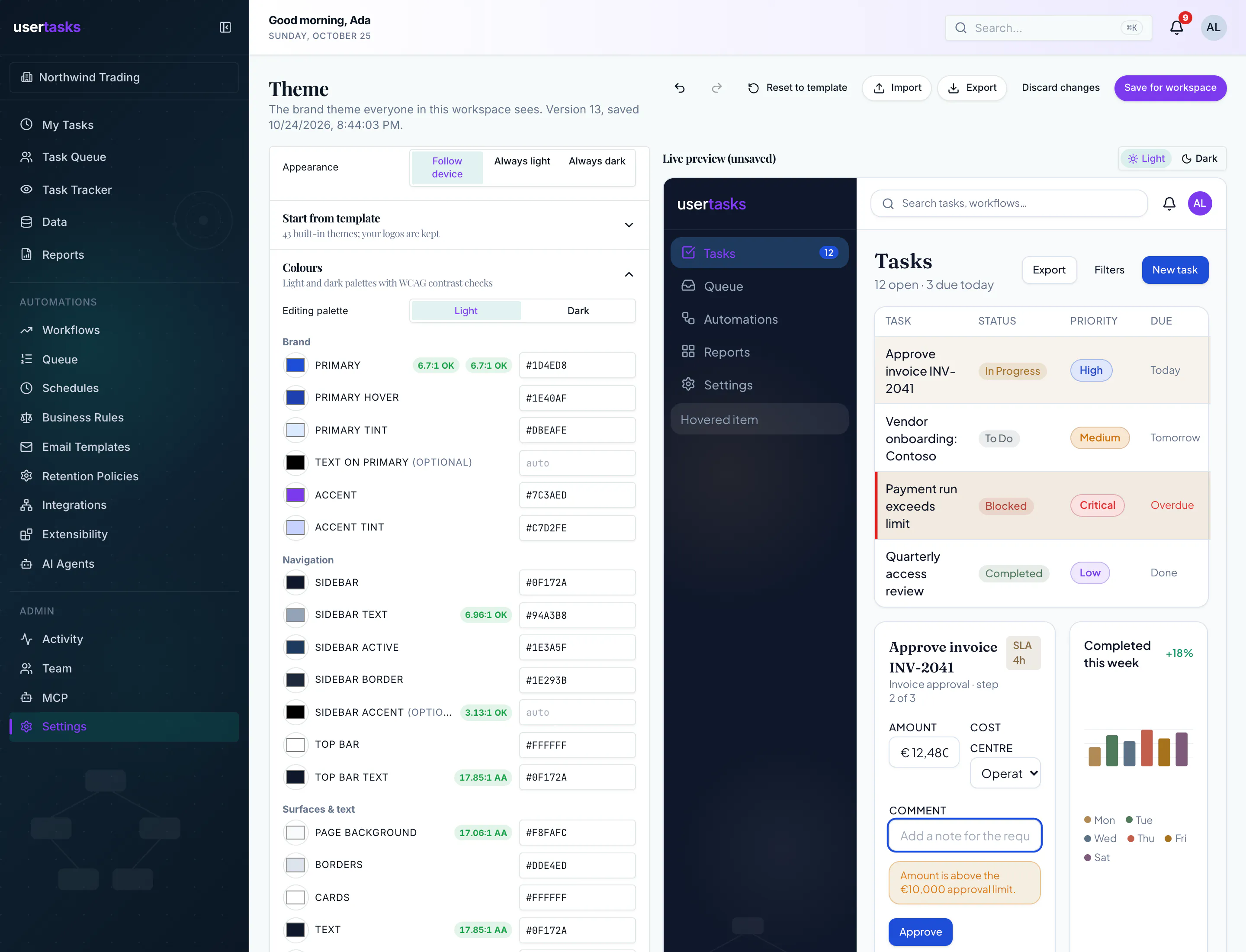
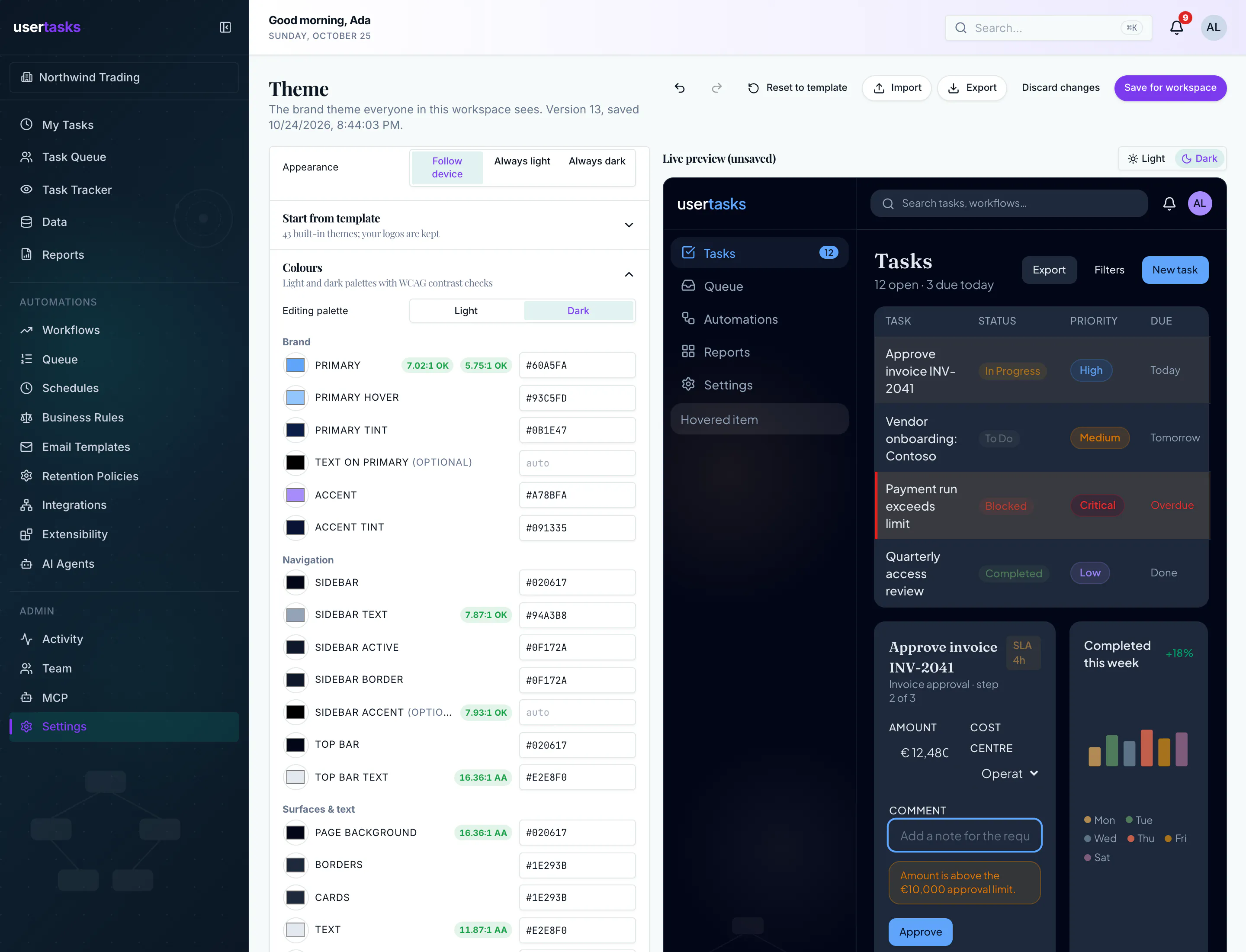
- Colours: separate light and dark palettes covering brand, navigation, surfaces, feedback, status pills, table row highlights and chart series. The badge next to a colour field shows its WCAG contrast ratio. A theme cannot be saved if text on primary buttons or the sidebar is below 3:1. Other text below AA (4.5:1) is shown as a warning.
- Typography: choose from the curated Google Fonts, a system font stack or an uploaded
.woff2file (at most 1 MB), each with a live specimen. You can also set weights, the base size, the heading font, letter spacing and uppercase form labels. - Shape & elevation, Density & layout, Sidebar & top bar (solid, gradient or dot texture, plus glows, hover colour and decorations) and Branding (logos for light and dark sidebars, favicon and wordmark).
- On the right, the live preview shows the app with your draft applied: the sidebar, top bar, a task list with highlighted and critical rows, buttons, inputs, status pills, a task detail with outcome buttons and a chart. Switch it between light and dark.
- Undo / redo (Ctrl/⌘ Z, Shift Ctrl/⌘ Z), Reset to template, Import and Export of the theme JSON.
- Save for workspace asks you to confirm, because the change applies to every member immediately. If someone else saved after you opened the designer, you can load their version or overwrite it.
API, MCP and CLI
Reading the theme is open to every member. Changing it, applying a template or uploading a font needs settings.edit.
| Operation | REST (/api/v1) | MCP | CLI |
|---|---|---|---|
| Get | GET /workspace-theme | workspace_theme_get | usertasks workspace-theme get |
| Replace | PUT /workspace-theme | workspace_theme_update | usertasks workspace-theme update -f theme.json |
| List templates | GET /workspace-theme/presets | workspace_theme_presets_list | usertasks workspace-theme presets |
| Apply a template | POST /workspace-theme/apply-preset | workspace_theme_apply_preset | usertasks workspace-theme apply-preset <id> |
| Upload a font | POST /workspace-theme/fonts | workspace_theme_font_upload | usertasks workspace-theme upload-font |
usertasks workspace-theme get -o json > theme.json       # edit, then:
usertasks workspace-theme update -f theme.json
usertasks workspace-theme apply-preset night-drive
curl -X POST "$URL/api/v1/workspace-theme/fonts" -H "Authorization: Bearer $KEY" -F file=@AcmeSans.woff2 -F family="Acme Sans"
PUT takes the whole theme, and also accepts the GET response as it is. Add expected_version to refuse the write (409) if the theme changed since you read it. A font upload returns a font reference such as { "source": "upload", "family": "Acme Sans", "url": … }. Put it in typography.sans, display or mono; uploading a font does not change the theme.
Config as code
Config export writes the theme to workspace-theme.json at the root of the folder. Uploaded fonts are referenced by file name, and logos by URL. When you apply the folder to another workspace:
- Fonts are looked up by file name in that workspace's font folder. If a file is missing, the default font is used and the apply returns a warning. Upload the file there, then apply again.
- Logo and favicon URLs that are not that workspace's own uploads are dropped, with a warning.
- The plan shows
workspace_themeasupdateorunchanged, with field diffs. Applying it needssettings.edit.