ZIP bombs
Office files are ZIP containers: the reader checks the directory first and inflates every part with a hard output cap.
Documents
Seven workflow steps work with Word, Excel, PowerPoint, PDF, Markdown and HTML files right in the run: read them into text and rows, redline two versions, convert and split, pull values into a data table, remove personal data. No document service to buy or host — scanned PDFs and pixel-perfect Office to PDF are optional add-ons.
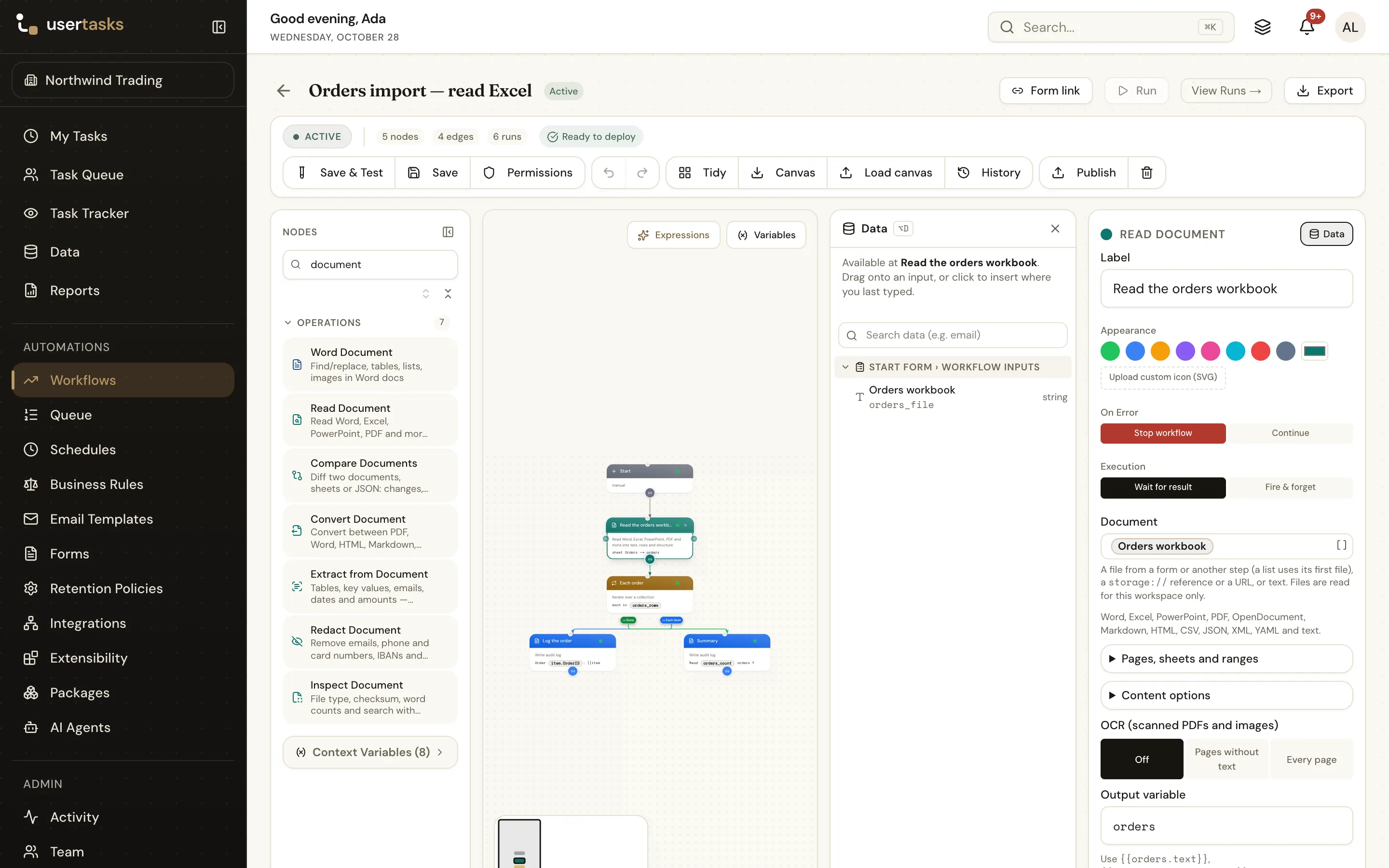
The document actions
Find them under Operations in the designer, next to the Word, Excel and PowerPoint template steps that fill documents in.
doc_readAny supported file into text, Markdown, sanitised HTML, metadata, structure — headings, tables, sheets, slides, comments, tracked changes, form fields — and rows to loop over.
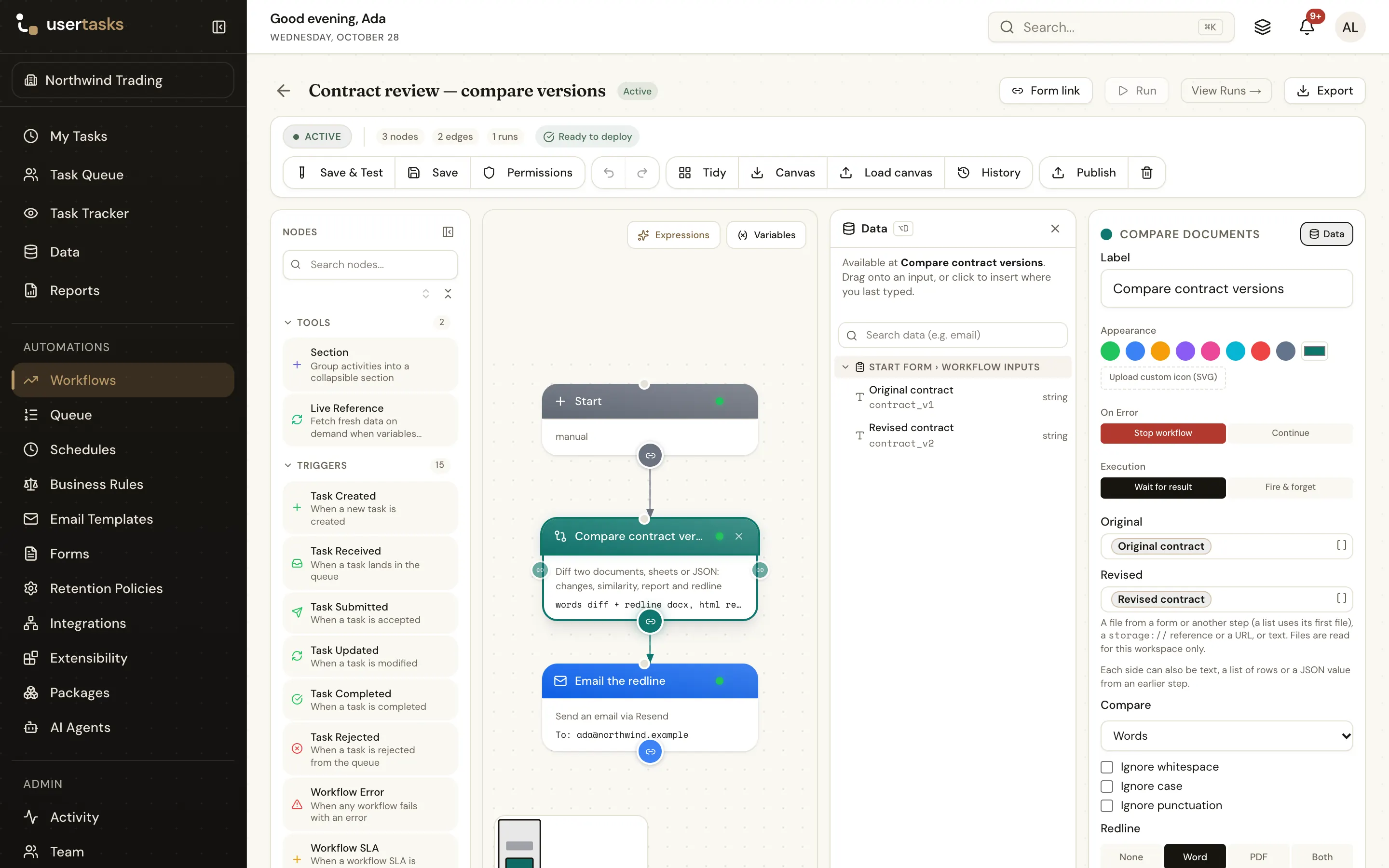
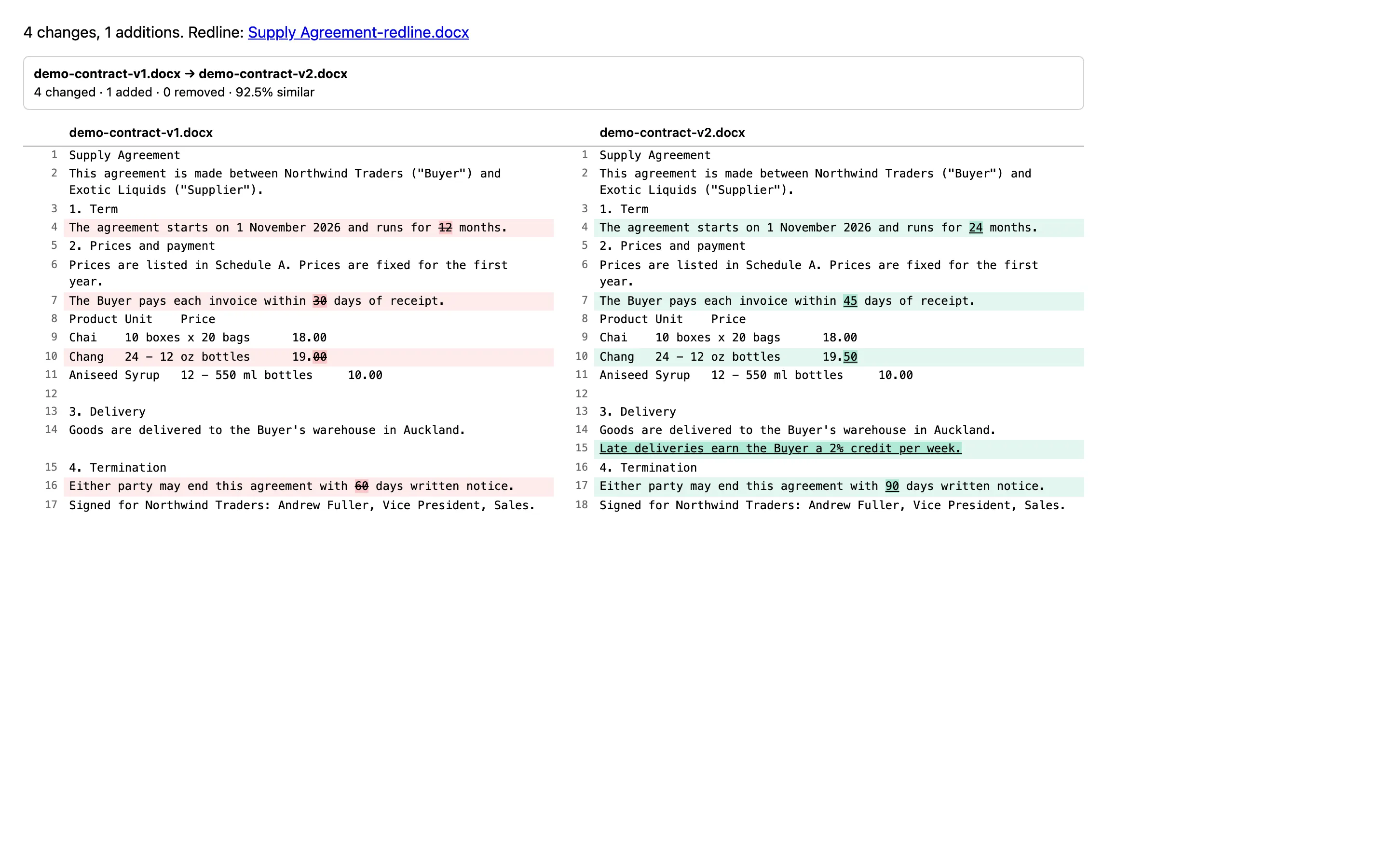
Docsdoc_compareTwo versions of a document, spreadsheet or JSON: changes, statistics, similarity, a side-by-side HTML report and a Word or PDF redline.
Docsdoc_convertTo PDF, Word, HTML, Markdown, plain text, CSV, Excel or JSON. Optional external converter for pixel-perfect Office to PDF.
Docsdoc_pdfMerge, split, extract pages, count pages, watermark or stamp text, rotate, and fill or read form fields.
Docsdoc_extractTables, named values by pattern, and emails, URLs, phone numbers, dates, amounts and percentages — straight into a data table if you like.
Docsdoc_redactA copy without emails, phone and card numbers, IBANs and other personal data, or the words and patterns you choose.
Docsdoc_inspectThe real file type from the content, checksums, word and character counts, reading time, and search with context.
DocsocrPages without a text layer are found and recognised with tesseract.js, offline, or Azure AI Document Intelligence.
DocsFormats
The type is detected from the content — magic bytes, the parts inside a ZIP, text sniffing — not from the name. A mismatch is reported as a warning.
{{document.text}}, rows in {{document_rows}}| Format | What you get |
|---|---|
| Word .docx | Text, headings, lists, tables, links, comments, tracked changes |
| Excel .xlsx | Every sheet, typed values, formula results, header detection, ranges |
| PowerPoint .pptx | Slide titles, text and speaker notes |
| Text per page, outline, links, form fields, tables; scanned pages with OCR | |
| OpenDocument | .odt, .ods (as sheets), .odp |
| Markdown | Including front matter |
| HTML | Scripts and active content dropped |
| CSV, TSV | Delimiter detected, quoted fields |
| JSON, XML, YAML | Parsed into structure; a list of objects becomes rows |
| RTF and text | Text |
| Images | PNG, JPEG, GIF, WebP, BMP, TIFF with OCR |
Compare
Compare contracts word by word, spreadsheets cell by cell with rows matched on key columns, or JSON with the path of every change. Get a Word redline with real tracked changes, a PDF redline and a side-by-side report ready to email.
In and out
Every document field takes a file object, a list of files, a storage reference, a URL or inline content. Every output is a file object the next step can use.
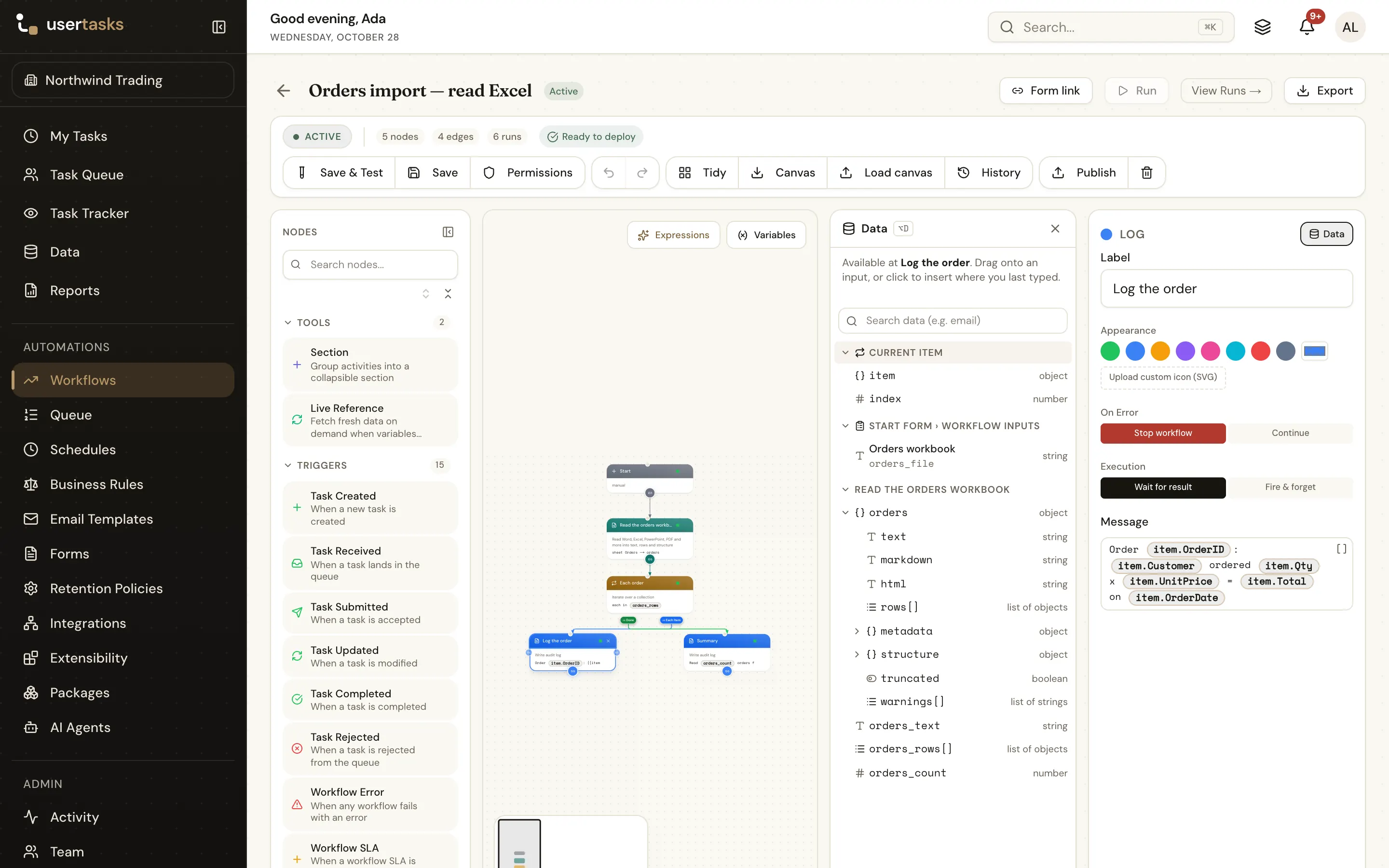
Read Document’s text, Markdown, rows, metadata and structure appear with their fields, ready to drag into the next step. Run history shows a compact summary, never the whole document.
There is no separate AI document step: Read Document turns the file into Markdown, and a Run Agent step with declared outputs summarises it, classifies it, and lets the workflow branch on the answer.
[
  { "type": "doc_read", "label": "Read contract",
    "config": { "source": "{{form.contract}}", "max_chars": 60000,
                "output_var": "document" } },
  { "type": "run_agent", "label": "Summarise",
    "config": { "agent_name": "Contract reviewer",
      "user_message": "Five bullet points, then low, medium or high risk.\n\n{{document.markdown}}",
      "output_variable": "review" } }
]
Security
Documents come from customers, suppliers and the internet. The readers assume the worst.
Office files are ZIP containers: the reader checks the directory first and inflates every part with a hard output cap.
XML with a DOCTYPE is refused; only the predefined entities expand, with bounded depth and node count.
HTML output is rebuilt from escaped text and passed through an allow-list sanitiser: no scripts, handlers or javascript: links.
pdf.js with eval off and no system fonts, so a crafted font cannot run code. Encrypted PDFs are refused clearly.
Files are read and written for the run's workspace; another workspace's file is simply not found. URLs go through the egress guard.
The actions run in the app's own process with JavaScript libraries. Files only leave if you configure cloud OCR or an external converter.
How-to guides
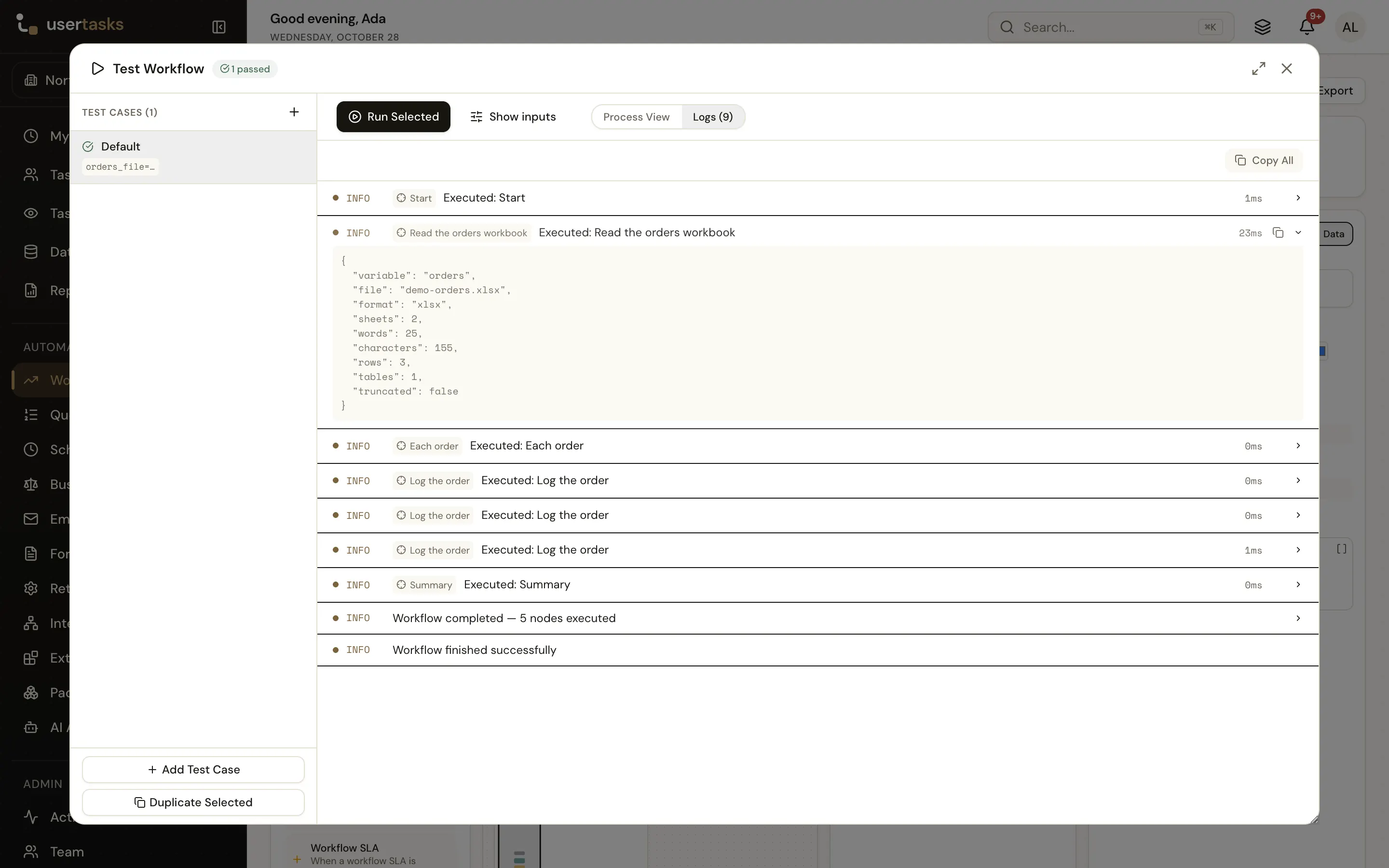
Save & Test: Read Document reports the format, sheets and rows; the loop runs once per row.
Word, Excel and PowerPoint (.docx, .xlsx, .pptx), OpenDocument, PDF (scanned pages with OCR), Markdown, HTML, CSV and TSV, JSON, XML, YAML, RTF, plain text, and images with OCR. The type is detected from the file's content, not its name. Older .doc, .xls and .ppt files convert to PDF with the optional external converter.
No. The document actions run inside the app with JavaScript libraries and need no external service. A file only leaves if you choose a cloud OCR provider or point the optional Office-to-PDF converter at a service — and that should be one on your own network.
Yes. Compare Documents can write a Word redline as real tracked changes (or as formatting: green underline for inserted text, red strike-through for deleted), a PDF redline, and a side-by-side HTML report you can use as an email body.
Read Document turns the file into text or Markdown; a Run Agent step does the rest. Put {{document.markdown}} in the agent's prompt, give the agent declared outputs such as risk and summary, and branch on them.
In: a form's Attachments field, a User Task, an HTTP download, storage connectors, a URL or inline content. Out: file objects saved to your configured storage, which the next step can email, upload, loop over, read again or hand to an AI agent.
Collect files with a form, read and compare them in the run, and send the result where it needs to go.