Documents
Document actions
Read, compare, convert, split, extract from, redact and inspect Word, Excel, PowerPoint, PDF and text files inside a workflow run.
Seven workflow steps work with documents directly in the run: they read a file into text, rows and structure, compare two versions, convert between formats, change PDFs, pull values out, remove personal data and check what a file really is. They run in the app's own process with pure JavaScript libraries, so no external service is needed; scanned PDFs (OCR) and pixel-perfect Office → PDF conversion are optional add-ons.
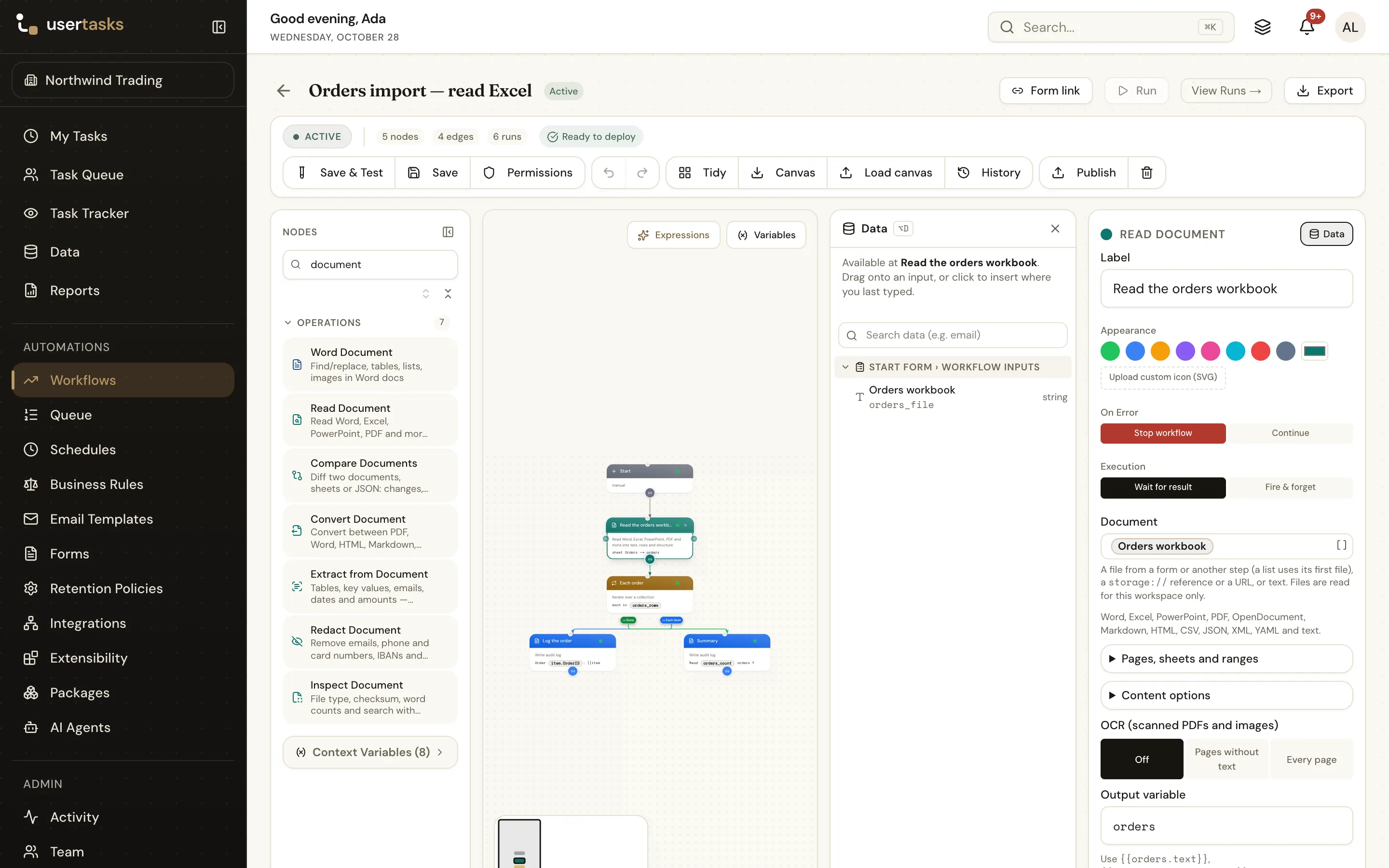
Find them in the designer's palette under Operations, next to Word Document, Excel Spreadsheet and PowerPoint Slides (which fill in templates).
The document actions
| Node | Type | What it does |
|---|---|---|
| Read Document | doc_read | Any supported file → plain text, Markdown, sanitised HTML, metadata (title, author, dates, pages, word counts), structure (headings, links, tables, sheets, slides, pages, comments, tracked changes, form fields) and rows to loop over |
| Compare Documents | doc_compare | Two files, texts, row lists or JSON values → changes, statistics, similarity, a side-by-side HTML report and a redline (Word or PDF) |
| Convert Document | doc_convert | A file → PDF, Word, HTML, Markdown, plain text, CSV, Excel or JSON |
| PDF Tools | doc_pdf | Merge, split, extract pages, count pages, watermark or stamp text, rotate, fill and read form fields |
| Extract from Document | doc_extract | Tables, named values by regular expression, and emails, URLs, phone numbers, dates, amounts and percentages — optionally written straight into a data table |
| Redact Document | doc_redact | A copy without emails, phone and card numbers, IBANs, other personal data, chosen words or patterns |
| Inspect Document | doc_inspect | File type from the content (not the name), checksums, word and character counts, reading time, search with context |
Scanned PDFs and images need OCR: see Scanned PDFs and OCR.
Supported formats
The type of a file is detected from its content (magic bytes, the parts inside a ZIP container, text sniffing); the name and MIME type it claims are only a fallback, and a mismatch is reported as a warning.
| Format | Read | Convert from | Convert to |
|---|---|---|---|
Word .docx (.docm, .dotx) | Yes: text, headings, lists, tables, links, comments, tracked changes, properties | Yes | Yes (headings, paragraphs, lists, tables, links) |
Excel .xlsx (.xlsm, .xltx) | Yes: every sheet, typed values, formula results, header detection, ranges | Yes | Yes (sheets, a document's tables, JSON rows) |
PowerPoint .pptx | Yes: slide titles, text and speaker notes | Yes | No |
OpenDocument .odt, .ods, .odp | Yes (.ods as sheets) | Yes | No |
| Yes: text per page, metadata, outline, links, form fields, tables (best effort); scanned pages with OCR | Yes | Yes (built-in renderer, or the external converter) | |
| Markdown | Yes, including front matter | Yes | Yes |
| HTML | Yes (scripts and active content dropped) | Yes | Yes (sanitised) |
| CSV, TSV | Yes (delimiter detected, quoted fields) | Yes | CSV |
| JSON | Yes (a list of objects becomes rows) | Yes | Yes |
| XML, YAML | Yes (parsed into structure.data) | Yes (as text) | No |
Rich Text .rtf | Yes (text only) | Yes | No |
| Plain text | Yes | Yes | Yes |
| Images (PNG, JPEG, GIF, WebP, BMP, TIFF) | With OCR on | With OCR on | No |
Word / Excel / PowerPoint 97–2003 (.doc, .xls, .ppt) | No | To PDF only, with the external converter | No |
Save a 97–2003 file as .docx, .xlsx or .pptx to read it, or convert it to PDF with the external converter and read the PDF.
File inputs
Every document field (Document, Original, Revised, PDF, PDFs to merge) takes an expression, and accepts:
- A file object — a file from a form's Attachments field (
{{form.<key>}}, or{{task_data.<key>}}after a User Task), or a file another step produced (HTTP Request, Download File, the Word / Excel / PowerPoint template steps, and the document actions themselves). - A list of files — the first file is used. PDF Tools → Merge uses every file, in order. Inside a Loop over a list of files,
{{item}}is one file. - A
storage://bucket/keyreference or a link to the app's own storage. - An http(s) URL — fetched through the egress guard (private, loopback and cloud metadata addresses are blocked unless
ALLOW_PRIVATE_EGRESS=true; redirects are checked again at every hop), with the size limit applied while it downloads. - Inline content —
{ "base64": "…", "name": "orders.csv" }(alsocontent_base64, or adata:URL). - Text — where the field says so, a plain string that is not a URL (or
{ "text": "…", "name": "notes.md" }) is the content itself. All fields except PDF Tools take text.
{ "source": { "base64": "T3JkZXJJRCxDdXN0b21lcgoxMDI0OCxWSU5FVAo=", "name": "orders.csv" } }Workspace only. Stored files are read for the run's workspace only: a reference to another workspace's workflow file, a form attachment of another workspace, a private bucket without an owner or an unknown bucket is reported as "file not found", and nothing is fetched.
Output files
Converted documents, redlines, reports, merged, split, stamped, rotated and filled PDFs and redacted copies are saved through the configured storage provider in the workspace's workflow-files folder, and returned as file objects — the same fields as a form attachment, so the next step can email, attach, loop over or read them:
{
  "_file": true,
  "id": "6d2f0c1e-4b7a-4f43-9a51-2a8c7e0d9b14",
  "name": "Supply Agreement.pdf",
  "size": 48213,
  "mime_type": "application/pdf",
  "content_type": "application/pdf",
  "url": "https://tasks.example.com/files/task-files/workflow-files/<workspace-id>/6d2f0c1e-4b7a-4f43-9a51-2a8c7e0d9b14.pdf",
  "path": "workflow-files/<workspace-id>/6d2f0c1e-4b7a-4f43-9a51-2a8c7e0d9b14.pdf",
  "storage_ref": "storage://task-files/workflow-files/<workspace-id>/6d2f0c1e-4b7a-4f43-9a51-2a8c7e0d9b14.pdf",
  "uploaded_by": null,
  "uploaded_at": "2026-10-28T09:14:03.512Z",
  "checksum_sha256": "4f0c5b8e1d2a9c7f3e6b0a1d8c4e2f9b7a5c3e1d0f8b6a4c2e0d9b7f5a3c1e8d"
}
The url depends on the storage provider. Output file names come from Output file name (output_name, expressions allowed); path separators and control characters are removed and the right extension is added.
Variables and the run history
Each action writes its full result to its Output variable (output_var) and a few shortcuts next to it, such as {{document_text}} and {{document_rows}} for Read Document. The data picker shows these with their fields. Convert Document and the single-file PDF Tools operations also set {{file}} and {{file_url}} (latest wins), as older file steps do.
The run history shows a compact summary of each step (counts, file names, a short text preview), never the whole document; the full result is in the variables. Warnings — a page without a text layer, a truncated output, characters a PDF font cannot show — appear as warning lines in the run log.
Limits
Instance-wide limits come from the environment, so self-hosters can raise or lower them (see Environment variables):
| Variable | Default | Range | What it limits |
|---|---|---|---|
DOCUMENT_MAX_MB | 25 | 1–200 | Largest input file, checked while it downloads (a merge: 4 × this in total) |
DOCUMENT_MAX_UNPACKED_MB | 250 | 10–2000 | Total unpacked size of a Word, Excel, PowerPoint or OpenDocument file |
DOCUMENT_MAX_PDF_PAGES | 500 | 1–10000 | PDF pages read |
DOCUMENT_TIMEOUT_SECONDS | 60 | 5–900 | One step's time for reading a document (Convert Document gets twice this) |
DOCUMENT_OCR_MAX_PAGES | 20 | 1–500 | Pages recognised by OCR in one step |
DOCUMENT_OCR_TIMEOUT_SECONDS | 120 | 5–900 | Time for OCR (Read Document uses the longer of this and DOCUMENT_TIMEOUT_SECONDS when OCR is on) |
DOCUMENT_CONVERTER_TIMEOUT_SECONDS | 120 | 10–900 | One call to the external converter |
Fixed limits:
| Limit | Value |
|---|---|
| Parts in one ZIP container / one part unpacked | 5,000 / 100 MB |
| Spreadsheet cells read (all sheets) | 2,000,000 |
Characters kept in text, markdown and html | 2,000,000 (lower it per step with max_chars) |
| Compare: characters per side / in characters mode / rows per sheet | 2,000,000 / 100,000 / 200,000 |
| Compare: changes listed | 2,000 (changes_truncated is then true) |
| PDF Tools: files in one merge / files from one split | 50 / 500 |
| Extract: rows written to a data table per run | 5,000 |
| Extract: patterns / matches per pattern / finder results per kind | 100 / 1,000 / 1,000 |
Security
- ZIP bombs. Word, Excel, PowerPoint and OpenDocument files are ZIP containers. The reader checks the central directory first (number of parts, declared sizes) and inflates every part with a hard output cap, so a header that lies about the size cannot make it allocate more. Encrypted entries and ZIP64 archives are refused.
- XML: no XXE. The XML reader refuses any document with a DOCTYPE (where external entities and entity-expansion bombs live), expands only the five predefined entities and numeric references, and bounds depth and node count.
- Sanitised HTML. HTML output (
htmlfrom Read Document, converted and redacted HTML) is rebuilt from the document's escaped text (Markdown through the Markdown renderer) and always passed through the allow-list sanitiser: no scripts, event handlers, iframes orjavascript:links. Compare reports are built from escaped text only. HTML input is tokenised, not rendered, and scripts, styles and other active content are dropped with their contents. - PDF. PDFs are read with pdf.js (through unpdf) with
evalturned off, no system fonts and no font faces, so a crafted font cannot run code. Encrypted (password-protected) PDFs are refused with a clear message. - Regular expressions. Patterns you write in Extract from Document, Redact Document and Inspect Document go through the ReDoS guard (nested quantifiers and over-long patterns are rejected). Extract and Redact run them line by line, at most 100,000 characters of each line; a regular-expression search in Inspect Document scans the first 2,000,000 characters.
- Network. URL inputs go through the egress guard; files never leave the instance unless you configure an OCR provider in the cloud or the external converter.
- Storage. Inputs are read and outputs written for the run's workspace only (see File inputs).
Summarise or classify with AI
There is no separate AI document node: Read Document turns the file into text, and a Run Agent step does the rest. Put {{document.text}} (or {{document.markdown}}, which keeps headings, lists and tables) in the agent's prompt:
[
  { "type": "doc_read", "label": "Read contract",
    "config": { "source": "{{form.contract}}", "max_chars": 60000, "output_var": "document" } },
  { "type": "run_agent", "label": "Summarise",
    "config": {
      "agent_id": "<agent-id>",
      "agent_name": "Contract reviewer",
      "user_message": "Summarise this supply agreement in five bullet points, then classify it as low, medium or high risk.\n\n{{document.markdown}}",
      "output_variable": "review"
    } }
]
max_chars keeps the prompt within the model's limits; {{document.metadata.words}} tells you how long the document was. Give the agent declared outputs (for example risk and summary) and branch on {{risk}}; see AI agents.
Office to PDF with an external converter
The built-in PDF output keeps the text, headings, lists and tables of a Word, Excel, PowerPoint or OpenDocument file, but not its layout. For a faithful copy, or for 97–2003 files, run a Gotenberg-compatible service on your own network and set DOCUMENT_CONVERTER_URL (for example http://gotenberg:3000). Convert Document's Automatic engine then sends Office files to it; HTML and Markdown go to it when the engine is External converter. Only the file being converted is sent. Never point it at a public service. Setup: Self-hosting.