Documents
Import an Excel file into a data table
Upload a workbook on a start form, read its rows with Read Document, and insert them into a data table — with a Loop and a Data step, or in one Extract step.
Northwind's sales team sends a monthly order export as an Excel workbook. This workflow takes the file from a start form, reads the Orders sheet and adds every order to an Orders data table.
The workbook has a title row and a blank row above the table, a formula column and a date column:
| A | B | C | D | E | F | |
|---|---|---|---|---|---|---|
| 1 | Northwind orders — October | |||||
| 2 | ||||||
| 3 | OrderID | Customer | Qty | UnitPrice | Total | OrderDate |
| 4 | 10248 | VINET | 12 | 14 | =C4*D4 | 01/10/2026 |
| 5 | 10249 | TOMSP | 9 | 18.6 | =C5*D5 | 02/10/2026 |
| 6 | 10250 | HANAR | 10 | 7.7 | =C6*D6 | 03/10/2026 |
1. Create the data table
In Data tables, create Orders with the columns order_id (number), customer (text), quantity (number), unit_price (number), total (number) and order_date (date).
2. Add a start form with a file field
Open the workflow's settings (nothing selected on the canvas) and Design start form. Add an Attachments field with the key workbook, allowed types Spreadsheets, at most 1 file, required. See Task forms.
When the workflow runs, {{form.workbook}} is a list with the uploaded file. Read Document uses the first file of a list, so you can pass it as it is.
3. Read the sheet
Add Read Document after the trigger:
{
  "type": "doc_read",
  "label": "Read orders",
  "config": {
    "source": "{{form.workbook}}",
    "sheet": "Orders",
    "header_row": "auto",
    "output_var": "orders"
  }
}
The canvas shows sheet Orders → orders. Header row: Detect skips the title and blank rows and uses row 3 as the header; formulas give their computed values and dates become YYYY-MM-DD. After a test run, {{orders_rows}} is:
[
  { "OrderID": 10248, "Customer": "VINET", "Qty": 12, "UnitPrice": 14, "Total": 168, "OrderDate": "2026-10-01" },
  { "OrderID": 10249, "Customer": "TOMSP", "Qty": 9, "UnitPrice": 18.6, "Total": 167.4, "OrderDate": "2026-10-02" },
  { "OrderID": 10250, "Customer": "HANAR", "Qty": 10, "UnitPrice": 7.7, "Total": 77, "OrderDate": "2026-10-03" }
]
and the step's output in the run is:
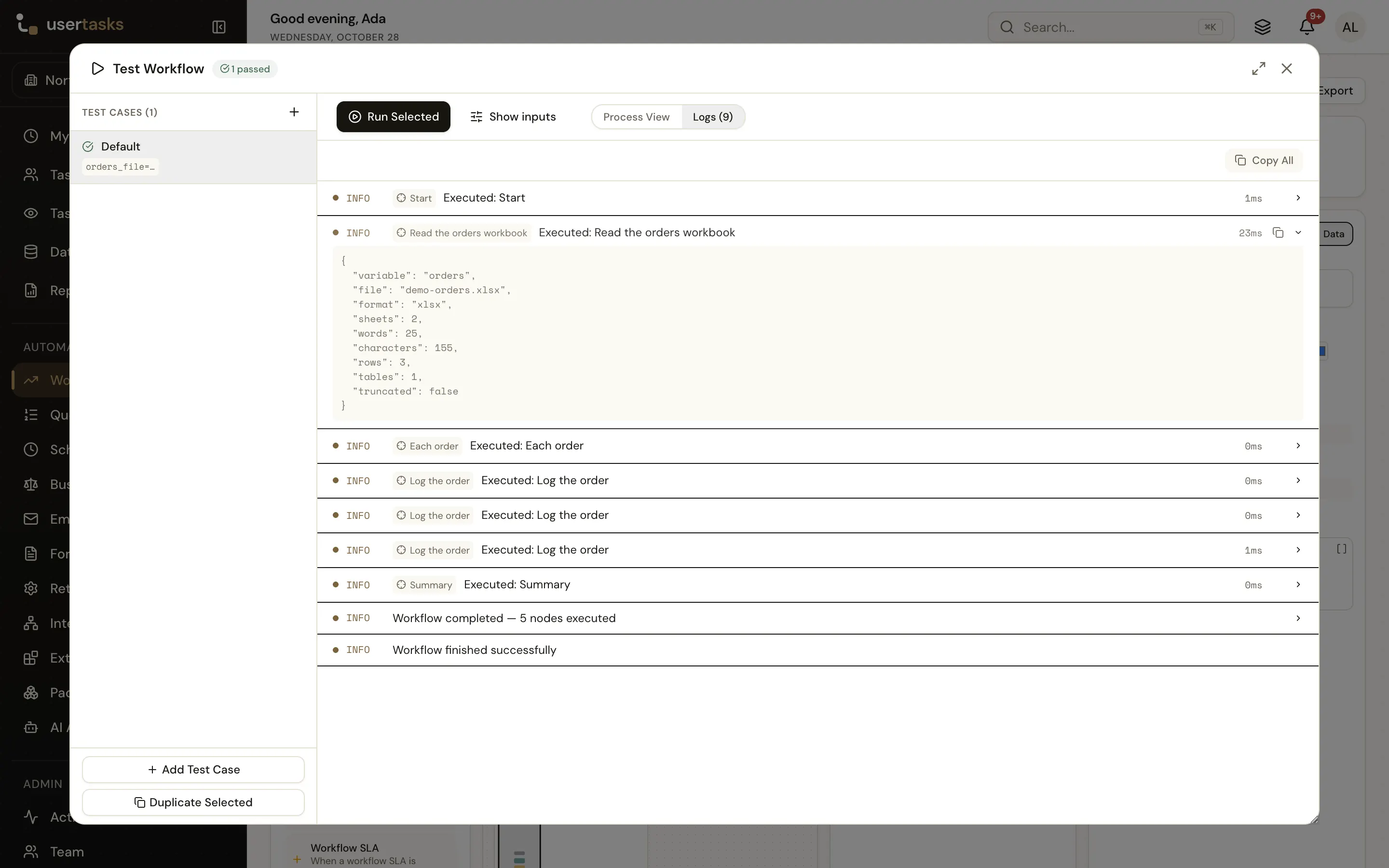
{ "variable": "orders", "file": "orders-october.xlsx", "format": "xlsx", "sheets": 2, "words": 25, "characters": 155, "rows": 3, "tables": 1, "truncated": false, "text_preview": "Orders OrderID Customer Qty UnitPrice Total OrderDate 10248 VINET 12 14 168 2026-10-01 10249 TOMSP 9 18.6 167.4 2026-10-02 10250 HANAR 10 7.7 77 2026-10-03" }sheets is the number of sheets in the workbook. {{orders_count}} is 3; {{orders.structure.sheets.0.header_row}} is 3.
If the header is not detected (for example, a header row that contains numbers), set Header row to the row number (3), or to First row after choosing a Range such as A3:F500.
4. Loop over the rows
Add Loop For Each with the rows as its items:
{ "type": "loop", "label": "Each order", "config": { "items": "{{orders_rows}}", "item_var": "order" } }Inside the loop, {{order.OrderID}}, {{order.Customer}}… are the current row; the data picker shows them under Current item.
5. Insert each row
In the loop body, add a Data step that inserts into Orders:
{
  "type": "update_data_table",
  "label": "Save order",
  "config": {
    "table_id": "<orders-table-id>",
    "table_name": "Orders",
    "operation": "insert",
    "column_values": {
      "order_id": "{{order.OrderID}}",
      "customer": "{{order.Customer}}",
      "quantity": "{{order.Qty}}",
      "unit_price": "{{order.UnitPrice}}",
      "total": "{{order.Total}}",
      "order_date": "{{order.OrderDate}}"
    }
  }
}
6. Run it
Run the workflow and upload the workbook. The run shows Read orders with 3 rows, then Each order three times with a Save order step in each iteration; the Orders table has three new rows. Each insert fires the table's row-created workflows, as any insert does.
The loop is the right choice when each row needs more work: a lookup, a Condition (skip zero quantities), a User Task for large orders.
The shortcut: one Extract step
When the rows go into the table as they are, Extract from Document reads and inserts in one step, without a loop:
{
  "type": "doc_extract",
  "label": "Import orders",
  "config": {
    "source": "{{form.workbook}}",
    "sheet": "Orders",
    "to_table": true,
    "table_id": "<orders-table-id>",
    "table_name": "Orders",
    "column_mapping": [
      { "column": "order_id", "field": "OrderID" },
      { "column": "customer", "field": "Customer" },
      { "column": "quantity", "field": "Qty" },
      { "column": "unit_price", "field": "UnitPrice" },
      { "column": "total", "field": "Total" },
      { "column": "order_date", "field": "OrderDate" }
    ]
  }
}
In the designer: Insert the rows into a data table, choose Orders, then Map a column for each column. Without a mapping, headers that match a column's key or label (ignoring case, spaces and punctuation) are used, so a table whose column labels are OrderID, Customer… needs none. The run shows:
{ "variable": "extracted", "file": "orders-october.xlsx", "tables": 1, "rows": 3, "inserted": 3, "table_columns": ["order_id", "customer", "quantity", "unit_price", "total", "order_date"] }Extract writes at most 5,000 rows per run; the rest are skipped with a warning. Split bigger files, or use the loop.
Variations
- CSV instead of Excel: the same steps work; the delimiter is detected.
- Every sheet: leave Sheet empty in Extract and set Rows from to
allto import the rows of every sheet one after the other. - Check before importing: add Compare Documents in sheet mode against last month's
{{orders_rows}}, keyed onOrderID, and only insertaddedrows.