Faces and plates
Located, never identified. Boxes from Azure AI Vision and AWS are measured; Gemini’s come from the model — check them with Detect only.
Images, audio and video
Eight workflow steps work with the photos, recordings and videos your processes collect: transcribe a call, read a photo, blur faces and ID numbers, bleep a card number, generate an image or a spoken notice, trim and convert. They use the AI provider you choose — with your own key — and hand every result to the next step.
The media actions
Find them under Operations in the designer. 7 call the AI provider you connect; Media Utilities runs FFmpeg on your server and needs no provider.
media_transcribeSpeech to text with timestamps, speaker labels, word timings and SRT, VTT, TXT or JSON files.
Docsmedia_analyze_imageDescribe, label, read text, locate faces and objects, check safety — or answer a question as named fields.
Docsmedia_analyze_videoA summary, scenes with timestamps, labels, on-screen text and key frames.
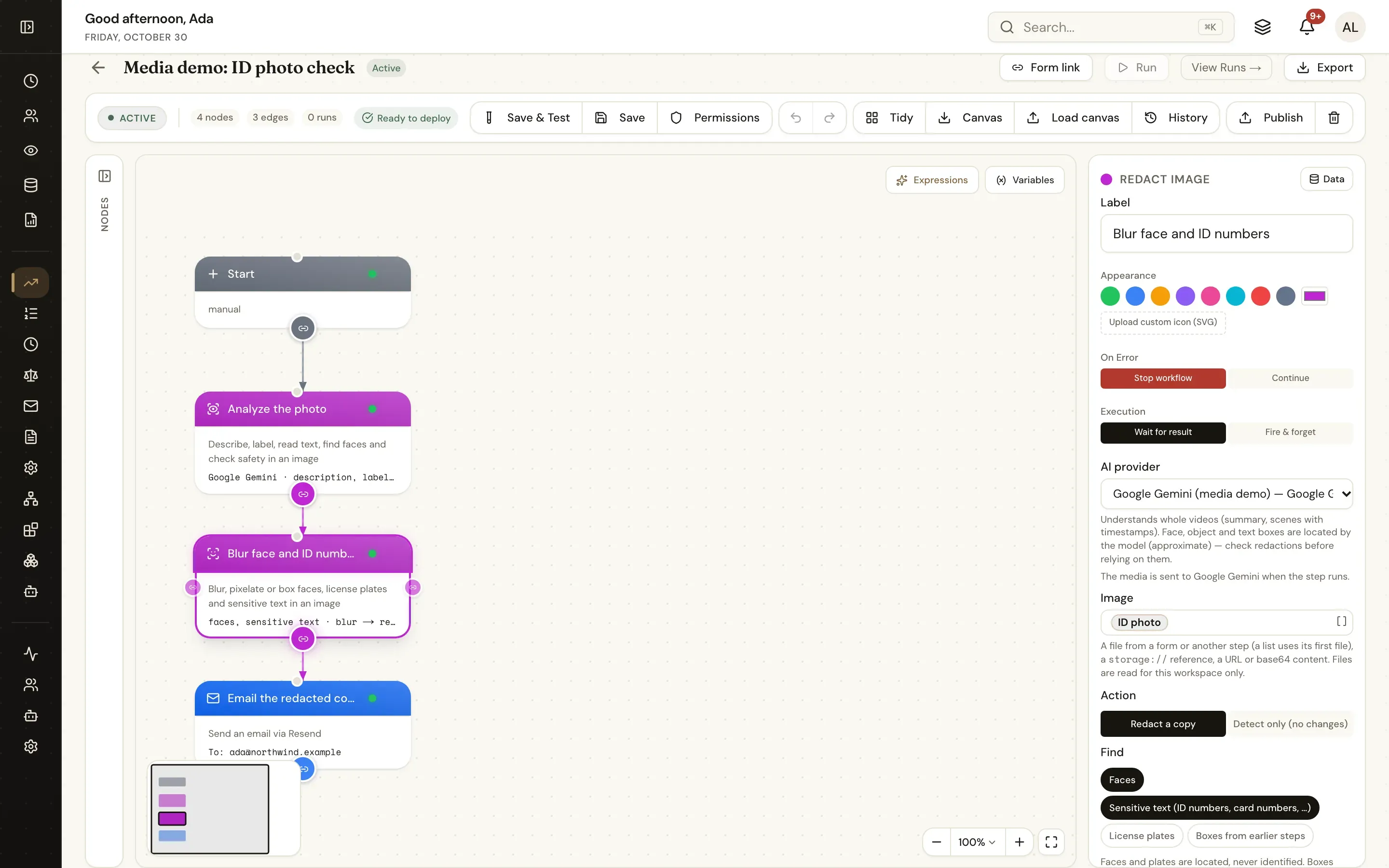
Docsmedia_redact_imageBlur, pixelate or box faces, license plates and sensitive text — or only report where they are.
Docsmedia_redact_videoThe same over time in a video, and bleep or mute sensitive speech, also in audio-only files.
Docsmedia_generate_imageCreate images from a prompt, or edit one with a mask.
Docsmedia_ttsTurn text into an audio file in a chosen voice.
Docsmedia_toolsMedia info, extract audio or frames, thumbnail, trim, convert, compress, burn in subtitles.
DocsTranscribe
Meetings, support calls, interviews and voice notes become text, timed segments and subtitle files the next step can summarise, search or attach.
{{transcript_files}}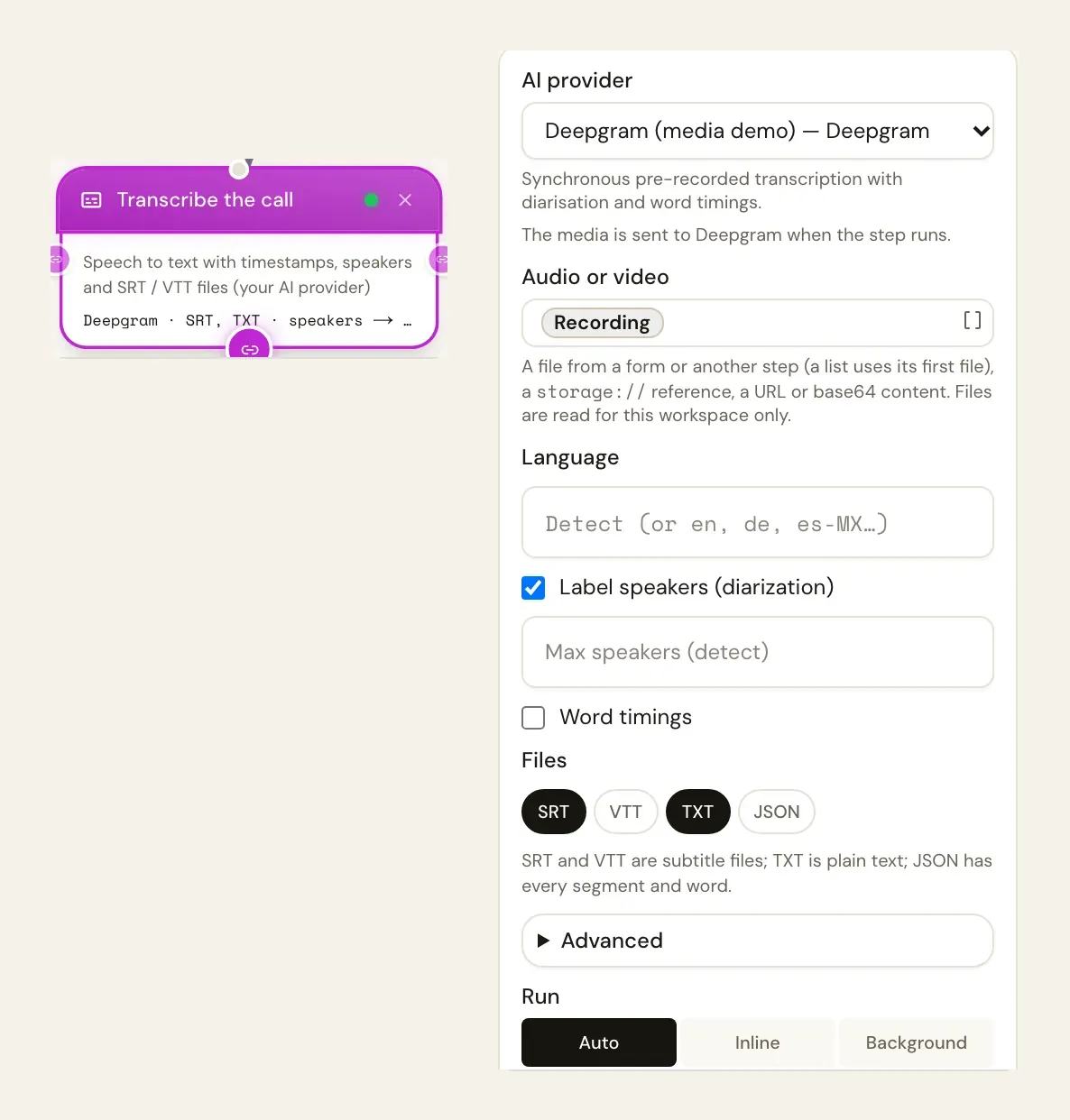
Analyse images and video
Analyze Image describes, labels and reads a photo, finds faces and objects with boxes and checks it for unsafe content. Give it a question and named fields and the answer comes back typed.
{{image_analysis_answer.damaged}} in a Condition{
"type": "media_analyze_image",
"label": "Check photo",
"config": {
"integration_id": "<integration-id>",
"source": "{{form.photo}}",
"features": ["description", "text"],
"prompt": "Is there visible damage to the vehicle? Which part?",
"fields": [
{ "name": "damaged", "type": "boolean" },
{ "name": "part", "type": "string" }
]
}
}Redact images, video and speech
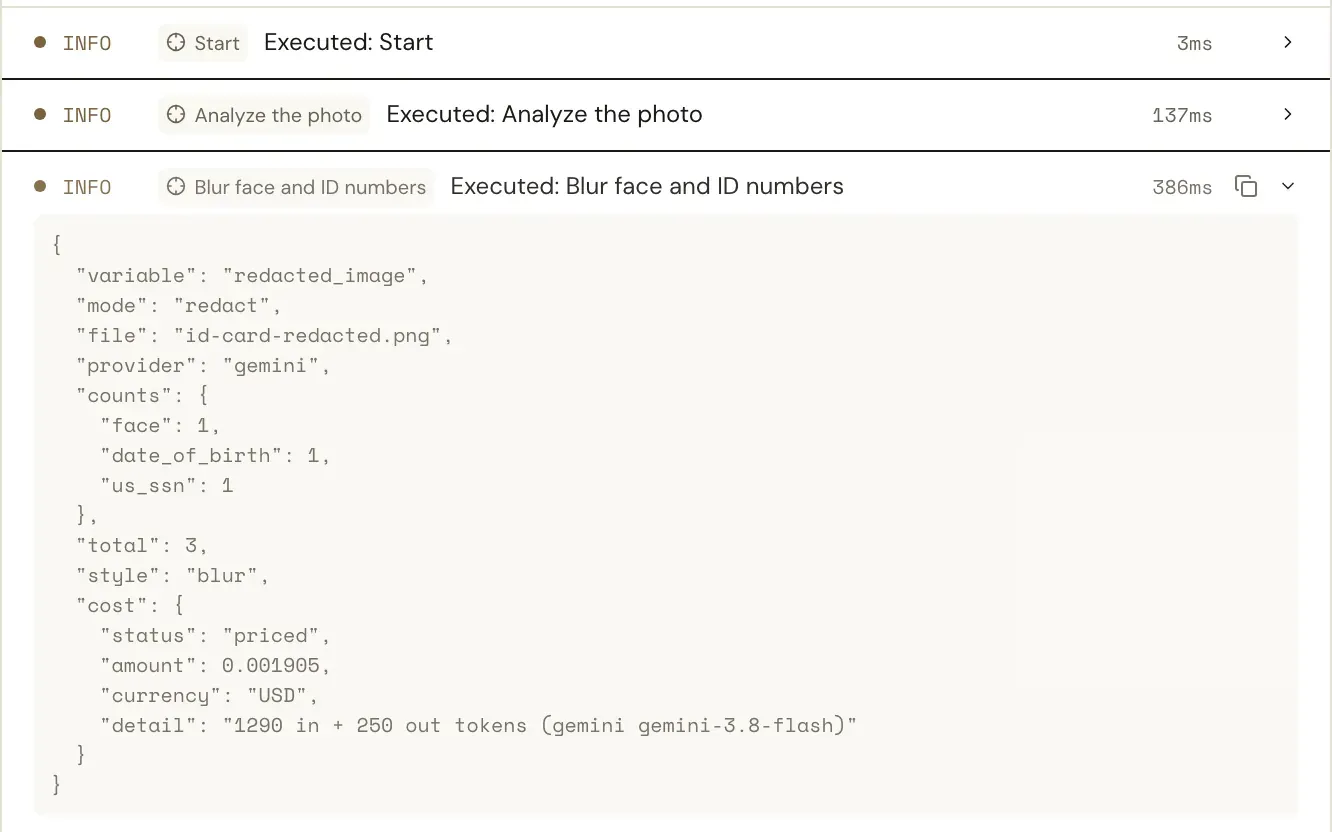
Redact Image and Redact Video find faces, license plates and sensitive text and make a copy with them blurred, pixelated or boxed — the original stays untouched. Redact Video also bleeps or mutes spoken personal data, in video and in audio-only recordings.
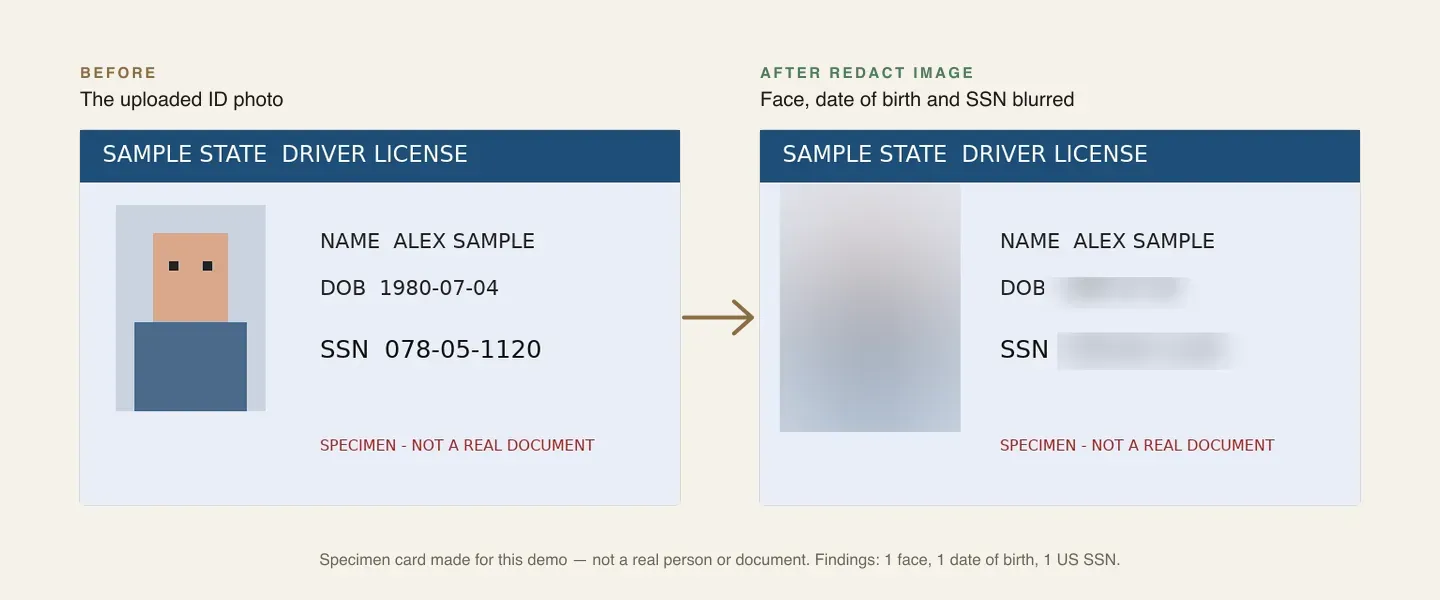
Located, never identified. Boxes from Azure AI Vision and AWS are measured; Gemini’s come from the model — check them with Detect only.
National IDs, card and bank numbers, dates of birth and more — the same detectors, check digits and context words as Redact Document.
Transcribe the speech, find card numbers, dates of birth or the names you list, and bleep or mute exactly those words.
Report what was found — type, masked text, confidence and box — without changing the file. Findings are masked in the run history.
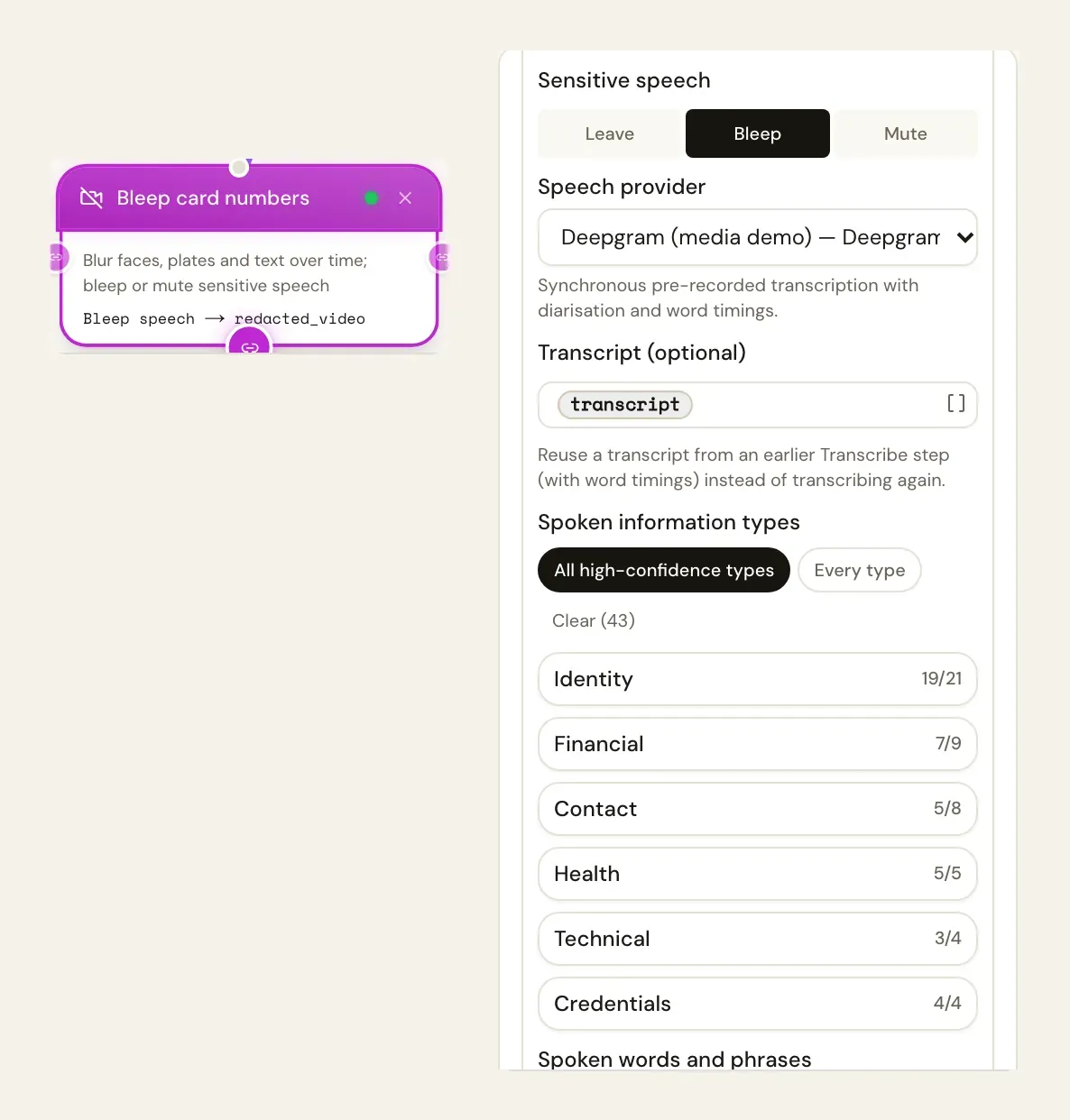
Transcribe the call once, pass the transcript to Redact Video and bleep every card number and date of birth. The copy is a file object; audio_segments lists what was bleeped and when, with the text masked.
Generate, speak and convert
Create the image a notification needs, speak a message for a phone line, and prepare files for the next system — all in the same run.
One to four images from a prompt with expressions in it, or an edit of an existing image with an optional mask. PNG, JPEG or WebP, with OpenAI or Stability AI.
“Hello {{customer.first_name}}, your order has shipped.” — as MP3, WAV, Opus, AAC or FLAC, in the voice, speed and style you choose, with OpenAI, Azure AI Speech, Deepgram or ElevenLabs.
FFmpeg on your server, no provider, nothing sent out:
Bring your own key
Add a provider once as an integration with your own API key, then choose it in each step — Deepgram for calls, Azure AI Vision for redaction, Gemini for video. The designer lists only connections that can do the step.
| Provider | Transcribe | Describe / label images | Text with positions | Face boxes | Object boxes | Safety | Whole video | Generate images | Edit images | Text to speech |
|---|---|---|---|---|---|---|---|---|---|---|
| OpenAI | Transcribe: yes | Describe / label images: yes | Text with positions: no | Face boxes: no | Object boxes: no | Safety: yes | Whole video: no | Generate images: yes | Edit images: yes | Text to speech: yes |
| Google Gemini | Transcribe: yes | Describe / label images: yes | Text with positions: yes | Face boxes: yes | Object boxes: yes | Safety: no | Whole video: yes | Generate images: no | Edit images: no | Text to speech: no |
| Azure AI Speech | Transcribe: yes | Describe / label images: no | Text with positions: no | Face boxes: no | Object boxes: no | Safety: no | Whole video: no | Generate images: no | Edit images: no | Text to speech: yes |
| Azure AI Vision | Transcribe: no | Describe / label images: yes | Text with positions: yes | Face boxes: yes | Object boxes: yes | Safety: no | Whole video: no | Generate images: no | Edit images: no | Text to speech: no |
| AWS (Transcribe + Rekognition) | Transcribe: yes | Describe / label images: yes | Text with positions: yes | Face boxes: yes | Object boxes: yes | Safety: yes | Whole video: no | Generate images: no | Edit images: no | Text to speech: no |
| Deepgram | Transcribe: yes | Describe / label images: no | Text with positions: no | Face boxes: no | Object boxes: no | Safety: no | Whole video: no | Generate images: no | Edit images: no | Text to speech: yes |
| AssemblyAI | Transcribe: yes | Describe / label images: no | Text with positions: no | Face boxes: no | Object boxes: no | Safety: no | Whole video: no | Generate images: no | Edit images: no | Text to speech: no |
| ElevenLabs | Transcribe: yes | Describe / label images: no | Text with positions: no | Face boxes: no | Object boxes: no | Safety: no | Whole video: no | Generate images: no | Edit images: no | Text to speech: yes |
| Stability AI | Transcribe: no | Describe / label images: no | Text with positions: no | Face boxes: no | Object boxes: no | Safety: no | Whole video: no | Generate images: yes | Edit images: yes | Text to speech: no |
Generated from the provider catalogue in the code, so it matches what the designer offers. Limits and notes per provider are in the docs.
Privacy and cost
Media goes to one place: the provider you chose for the step, when the step runs. What it cost is on the step’s result.
Nothing is sent when you add a connection or design a workflow. Residency follows the provider and the region or endpoint you configure.
Each key is stored encrypted on the workspace’s integration, or as a reference to your secret store, and loaded only for that workspace’s runs.
Counts, durations, provider, model, file names and a 200-character preview — never the media or a full transcript. Temporary files are deleted when the step ends.
An estimate from the provider’s list prices — per minute, image or character — with the result and in the run history. No price, no guess: it says “cost unknown”.
AI agents
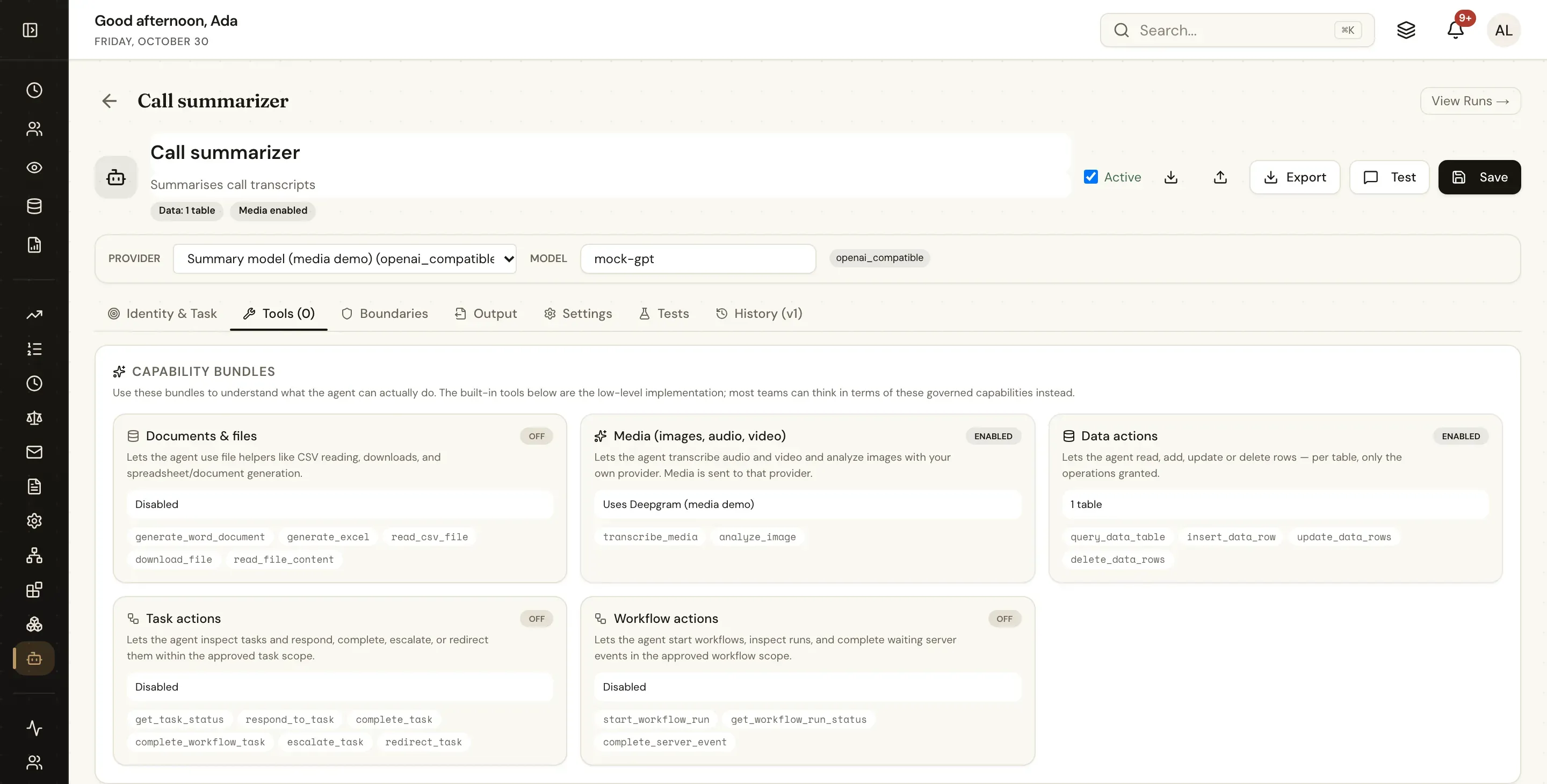
Turn on Media (images, audio, video) in the agent designer and pick a connection: the agent gets transcribe_media and analyze_image for files attached to the conversation or a URL.
Where it runs
Transcription within the provider’s upload limit, image analysis, image redaction (PNG and JPEG are processed in JavaScript), image generation and text to speech run wherever UserTasks runs — cloud, serverless or your own servers.
The Docker image ships with FFmpeg, so Media Utilities, Redact Video, frame sampling for Analyze Video and chunked transcription of long recordings work out of the box with Docker Compose, the Helm chart and on-premises installs. Elsewhere, point FFMPEG_PATH at a binary; serverless hosts without FFmpeg, such as Vercel, run the provider steps.
How-to guides
Every media field takes a file from a form’s Attachments field, an earlier step, a storage reference or a URL. Every output — transcripts, redacted copies, images, speech, frames — is a file object the next step can email, store or loop over.
{
  "type": "media_transcribe",
  "label": "Transcribe meeting",
  "config": {
    "integration_id": "<integration-id>",
    "source": "{{form.recording}}",
    "diarize": true,
    "formats": ["srt", "txt"],
    "output_var": "transcript"
  }
}OpenAI, Google Gemini, Azure AI Speech, Azure AI Vision, AWS (Transcribe + Rekognition), Deepgram, AssemblyAI, ElevenLabs, Stability AI. You add a provider once as an integration with your own API key and choose it in each step. The designer lists only connections that can do the step, and says what the chosen one lacks.
Only to the provider you choose in the step, and only when the step runs — adding a connection or designing a workflow sends nothing. Data residency and retention follow that provider and the region or endpoint you configure. Run history never contains the media or full transcripts: it shows counts, durations, file names, a short preview and the estimated cost.
No. Faces are located, never identified: the steps return where a face is so it can be blurred or counted, not who it is.
The step reads the image's text with positions and checks it with the same 50+ information types as Redact Document — national IDs, card and bank numbers, dates of birth and more, with check digits and context words — plus any words and patterns you add. Each finding has a type, a confidence and a box; the values are masked in the run history.
Up to two hours by default (MEDIA_MAX_DURATION_SECONDS) and 100 MB (MEDIA_MAX_MB); self-hosters can raise both. In run mode Auto, media longer than five minutes runs in the background and the workflow continues when the result is ready.
The provider bills your account directly. Each step estimates its cost from the provider's published list prices and returns it with the result and in the run history; when there is no price for a model it says so rather than guessing. Self-hosters can override prices with MEDIA_PRICES_JSON.
Only for local processing: Media Utilities, Redact Video, frame sampling in Analyze Video and splitting recordings longer than a provider accepts in one upload. The Docker image includes FFmpeg, so Docker, Kubernetes and on-premises installs are ready. Everything that runs at the provider — transcription, image analysis and redaction, image generation and speech — works on every deployment.
Collect them with a form, transcribe, analyse and redact them in the run, and send the result where it needs to go — with the provider you trust.