Media (images, audio, video)
Quick start: transcribe a recording in 3 minutes
Connect a transcription provider, add one Transcribe step to a workflow, upload a short recording in Save & Test and read the transcript and subtitle file.
From an API key to a transcript in one workflow step. You need a short recording (an MP3, M4A, WAV or MP4 of a minute or two) and a key from a transcription provider — Deepgram, OpenAI, AssemblyAI, ElevenLabs, Azure AI Speech, Google Gemini or AWS. This guide uses Deepgram; the others work the same way.
1. Connect the provider (1 minute)
- Get a key: console.deepgram.com → API Keys.
- In UserTasks open Integrations, switch to the Connectors tab, choose Deepgram, paste the key and save.
The key is stored encrypted for this workspace and used only by its runs. Nothing is sent to Deepgram until a step runs. Other providers: Provider setup.
2. Add the step (1 minute)
- Create a workflow (Workflows → New Automation) with a Manual trigger.
- With nothing selected on the canvas, choose Design start form and add an Attachments input named
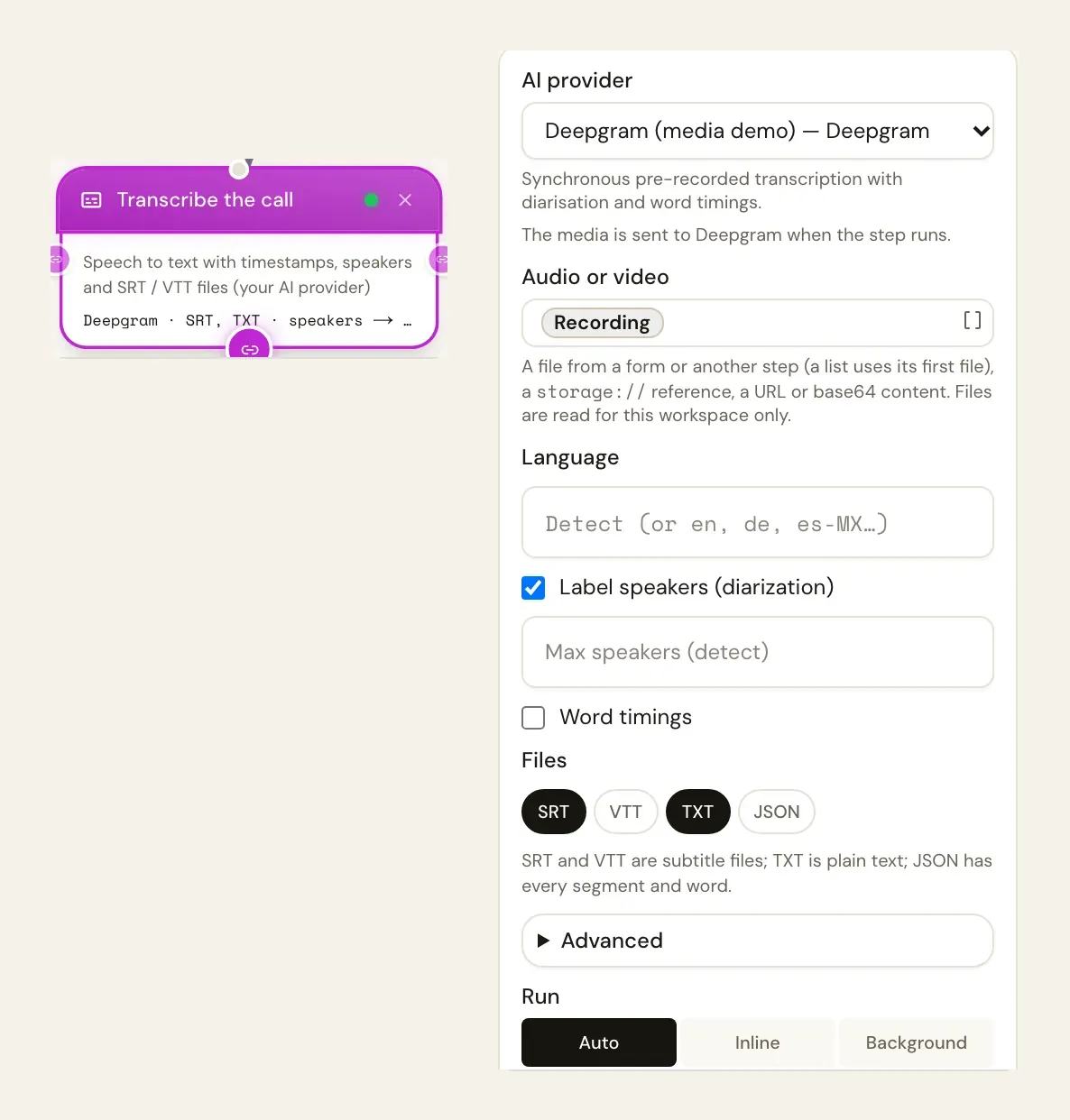
recording(allow audio and video, or any safe file). - From the palette (Operations), drag Transcribe Audio / Video under the trigger. Choose your Deepgram connection in AI provider, put
{{recording}}in Audio or video (or pick Recording in the Data panel), and turn on Label speakers. Keep Files at SRT.
The step's JSON:
{
  "type": "media_transcribe",
  "label": "Transcribe",
  "config": {
    "integration_id": "<integration-id>",
    "source": "{{recording}}",
    "diarize": true,
    "formats": ["srt"],
    "output_var": "transcript"
  }
}
3. Test it (1 minute)
Press Save & Test, upload the recording in the start form and run. Save & Test always runs the step inline, so the result appears in the test panel:
{{transcript_text}}— the whole transcript,{{transcript_segments}}— timed segments withspeaker,{{transcript_srt}}— the subtitle file, a file object you can attach to an email.
The run history shows the duration, language, segment count, a 200-character preview and the estimated cost — never the whole transcript.
Next
- Summarise it: add a Run Agent step with
{{transcript_text}}in the prompt — the full recipe is Transcribe a meeting recording and email the summary. - Longer recordings: publish the workflow and run it for real; in run mode Auto, media over five minutes runs in the background and the run continues when the transcript is ready.
- Subtitles in the video: Media Utilities → Burn in subtitles with
{{transcript_srt}}.