Media (images, audio, video)
Media actions
Transcribe audio and video, analyse images and video, blur faces, plates and sensitive text, generate images and speech, and trim or convert media inside a workflow run — with your own AI provider.
Eight workflow steps work with images, audio and video. Seven of them use an AI provider you connect with your own API key — OpenAI, Google Gemini, Azure AI, AWS, Deepgram, AssemblyAI, ElevenLabs or Stability AI. The eighth, Media Utilities, runs FFmpeg on the server and needs no provider.
Find them in the designer's palette under Operations, next to the document actions.
New to the media steps? Quick start: transcribe a recording in 3 minutes.
The media actions
| Node | Type | What it does |
|---|---|---|
| Transcribe Audio / Video | media_transcribe | Speech to text with timestamps, speakers, word timings and SRT / VTT / TXT / JSON files |
| Analyze Image | media_analyze_image | Describe, label, read text, locate faces and objects and check safety; answer a question, optionally as named fields |
| Analyze Video | media_analyze_video | Summary, scenes with timestamps, labels, on-screen text and key frames |
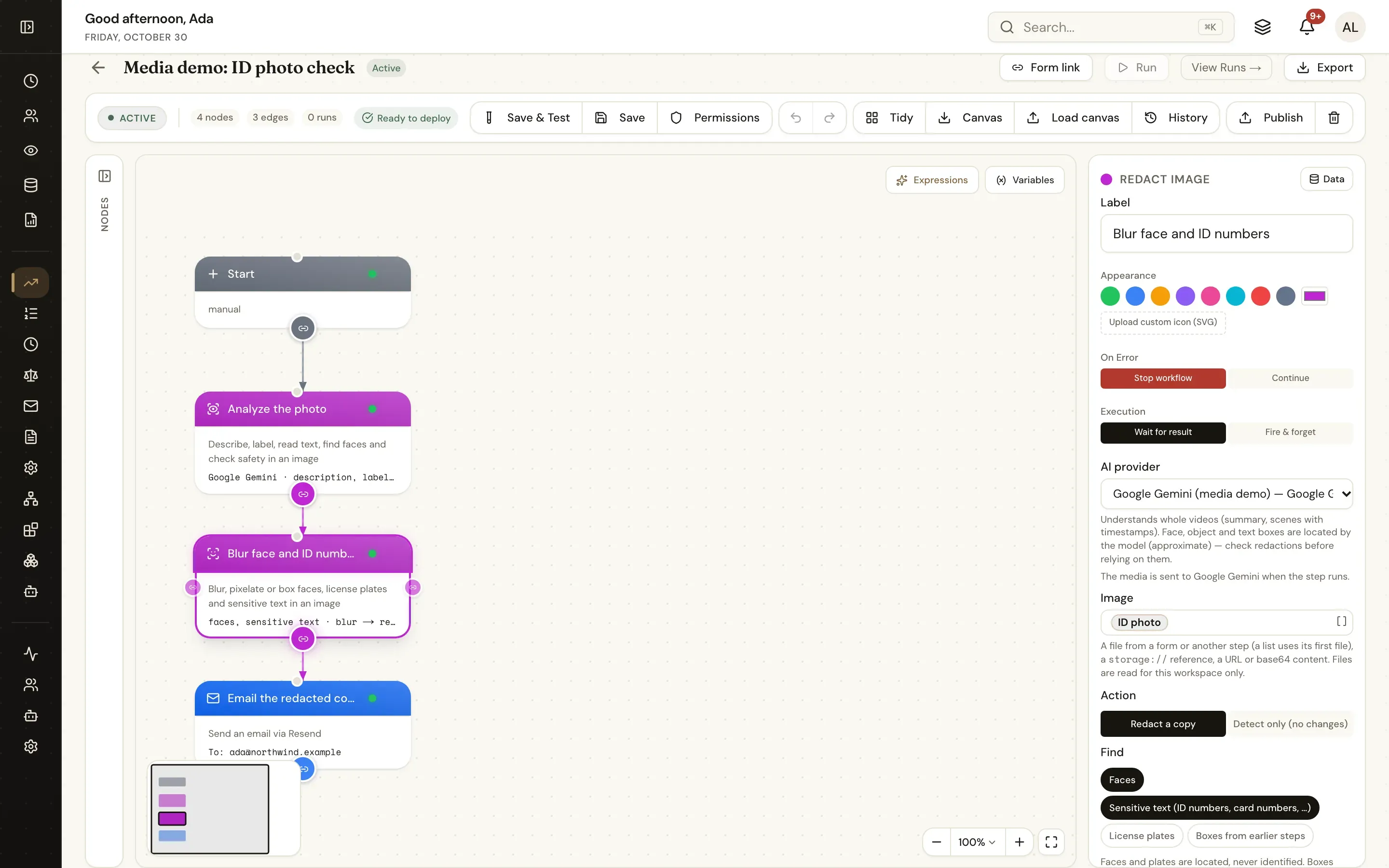
| Redact Image | media_redact_image | Blur, pixelate or box faces, license plates and sensitive text (ID numbers, card numbers…) in an image, or only report where they are |
| Redact Video | media_redact_video | The same over time in a video, and bleep or mute sensitive speech (also in audio-only files) |
| Generate / Edit Image | media_generate_image | Create images from a prompt, or edit one with a mask |
| Text to Speech | media_tts | Turn text into an audio file in a chosen voice |
| Media Utilities | media_tools | Media info, extract audio or frames, thumbnail, trim, convert, compress, burn in subtitles |
Providers and capabilities
Each provider does some of the work. The designer lists only connections that can do a step and says what the chosen one lacks ("OpenAI cannot locate faces — choose Google Gemini, Azure AI Vision or AWS").
| Provider | Transcribe | Describe / label images | Text with positions | Face boxes | Object boxes | Safety | Whole video | Generate images | Edit images | Text to speech |
|---|---|---|---|---|---|---|---|---|---|---|
| OpenAI | ✓ | ✓ | — | — | — | ✓ | — | ✓ | ✓ | ✓ |
| Google Gemini | ✓ | ✓ | ✓ | ✓ | ✓ | — | ✓ | — | — | — |
| Azure AI Speech | ✓ | — | — | — | — | — | — | — | — | ✓ |
| Azure AI Vision | — | ✓ | ✓ | ✓ | ✓ | — | — | — | — | — |
| AWS (Transcribe + Rekognition) | ✓ | ✓ | ✓ | ✓ | ✓ | ✓ | — | — | — | — |
| Deepgram | ✓ | — | — | — | — | — | — | — | — | ✓ |
| AssemblyAI | ✓ | — | — | — | — | — | — | — | — | — |
| ElevenLabs | ✓ | — | — | — | — | — | — | — | — | ✓ |
| Stability AI | — | — | — | — | — | — | — | ✓ | ✓ | — |
| Step | Type | Providers |
|---|---|---|
| Transcribe | media_transcribe | OpenAI, Google Gemini, Azure AI Speech, AWS (Transcribe + Rekognition), Deepgram, AssemblyAI, ElevenLabs |
| Analyze Image | media_analyze_image | OpenAI, Google Gemini, Azure AI Vision, AWS (Transcribe + Rekognition) |
| Analyze Video | media_analyze_video | OpenAI, Google Gemini, Azure AI Vision, AWS (Transcribe + Rekognition) |
| Redact Image | media_redact_image | Google Gemini, Azure AI Vision, AWS (Transcribe + Rekognition) |
| Redact Video | media_redact_video | Google Gemini, Azure AI Vision, AWS (Transcribe + Rekognition) |
| Generate / Edit Image | media_generate_image | OpenAI, Stability AI |
| Text to Speech | media_tts | OpenAI, Azure AI Speech, Deepgram, ElevenLabs |
| Media Utilities | media_tools | None needed (FFmpeg on the server) |
Faces are located, never identified: no step recognises who a person is.
- OpenAI — Transcription uploads up to 25 MB per request (longer media is split into chunks). Timed segments with whisper-1 (the default); speaker labels switch to gpt-4o-transcribe-diarize; gpt-4o-transcribe / gpt-4o-mini-transcribe return text without timings. No face or text boxes (redaction needs a provider with boxes). Video is analysed from sampled frames.
- Google Gemini — Understands whole videos (summary, scenes with timestamps). Face, object and text boxes are located by the model (approximate) — check redactions before relying on them.
- Azure AI Speech — Fast transcription API (synchronous; diarisation, word timings). Files under 500 MB / 5 hours.
- Azure AI Vision — Image Analysis 4.0 (caption, tags, objects, Read OCR with word boxes). Face boxes use the Face API detection on the same resource (detection only — no identification). Caption is available in some regions only.
- AWS (Transcribe + Rekognition) — Transcribe runs as an asynchronous job: media is staged in your S3 bucket and deleted afterwards. Rekognition images up to 5 MB (larger images are downsized).
- Deepgram — Synchronous pre-recorded transcription with diarisation and word timings.
- AssemblyAI — Asynchronous: upload, then the step polls (long recordings run in the background).
Set up a provider: Provider setup.
Inputs and outputs
Every media field takes an expression. A file object (a form's Attachments field such as {{form.recording}}, or a file from another step), a list of files (the first is used), a storage:// reference, an http(s) URL (fetched through the egress guard) or base64 content. Files are read for the run's workspace only — the same rules as the document actions.
Output files (transcript files, redacted copies, generated images, speech, frames, converted media) are saved through the configured storage provider and returned as file objects — the same fields as a form attachment (id, name, size, mime_type, url, storage_ref, checksum_sha256, …) — so a later step can email, store, loop over or analyse them. Frames and key frames also carry time (seconds from the start).
Each step writes its result to its Output variable (output_var) and a few shortcuts next to it, such as {{transcript_text}} and {{transcript_srt}}. The data picker and the Variables panel list them with their fields.
Privacy
- Media goes to the provider you choose. When a step runs, the media (or frames of it, or its audio) is sent to that provider's API with your key. Data residency and retention follow that provider and the region or endpoint you configure in the connection — check its terms before sending personal data.
- Nothing is sent until a step runs. Adding a connection or designing a workflow sends nothing.
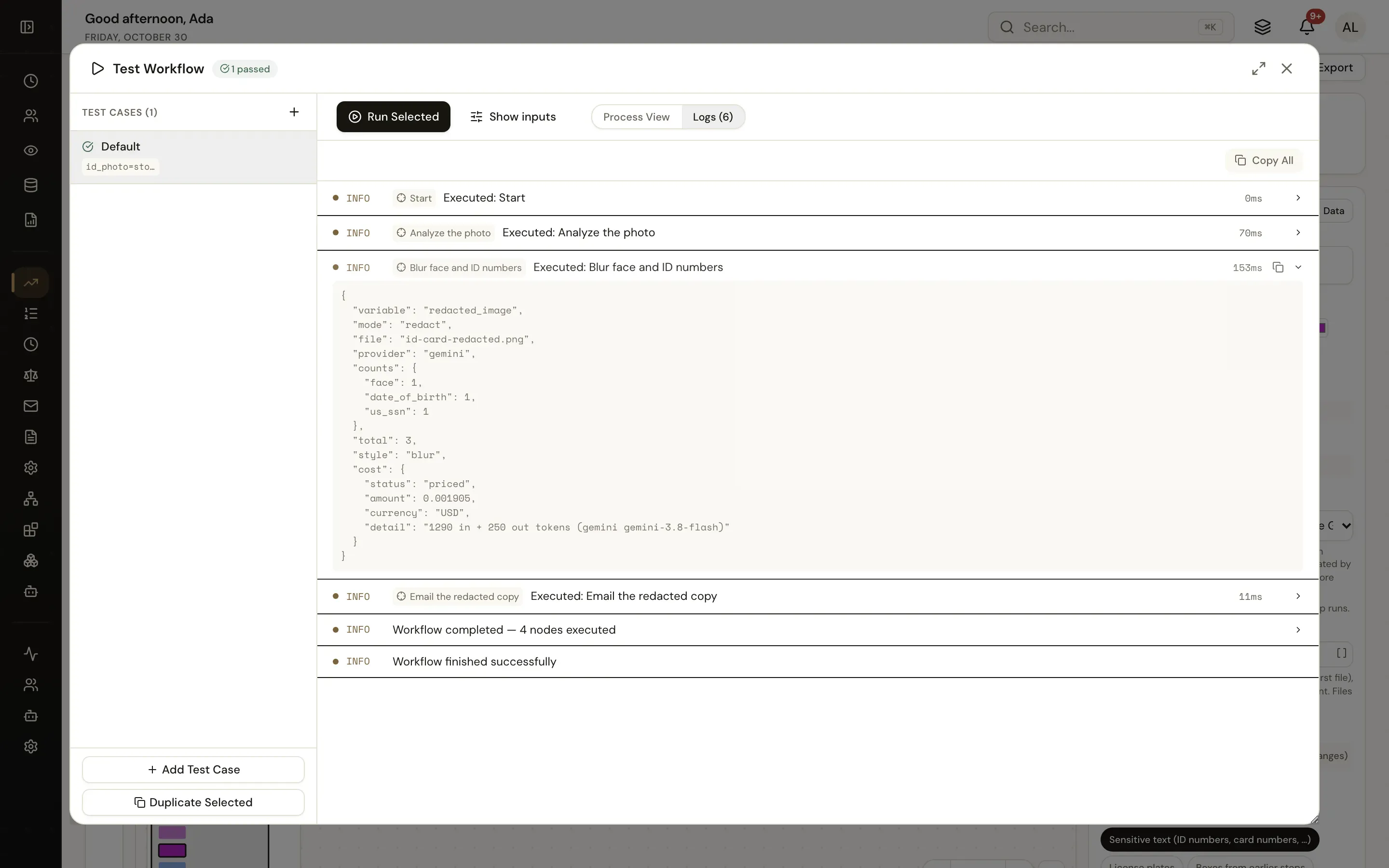
- Run logs never contain media or full transcripts. The run history shows counts, durations, provider, model, file names, at most a 200-character text preview and the estimated cost. The full result is only in the run's variables.
- Temporary files are written to
MEDIA_TMP_DIR(default: the system temp folder) and deleted when the step finishes. - Redaction findings are masked (•••) in the run history.
Cost
Provider calls are billed by the provider to your account. Each step estimates its cost from the provider's published list prices as of the date of the built-in price table (per minute of audio, per image, per character…) and returns it as cost (status, amount, currency, detail); the run history shows it too. When there is no price for a model, the cost is reported as cost unknown (status: "unknown"). Discounts, free tiers and taxes are not included. Self-hosters can override prices with MEDIA_PRICES_JSON.
Limits
Instance-wide limits come from the environment (see Environment variables):
| Variable | Default | What it limits |
|---|---|---|
MEDIA_MAX_MB | 100 | Largest media input, in MB |
MEDIA_MAX_DURATION_SECONDS | 7200 | Longest audio or video accepted |
MEDIA_INLINE_MAX_SECONDS | 300 | In run mode Auto, longer media runs in the background |
MEDIA_TIMEOUT_SECONDS | 120 | Time for a step that runs inline |
MEDIA_JOB_TIMEOUT_SECONDS | 3600 | Time for a background job, including waiting for the provider |
MEDIA_MAX_IMAGE_MEGAPIXELS | 40 | Largest decoded image |
MEDIA_VIDEO_REDACT_MAX_SECONDS | 600 | Longest video Redact Video accepts |
MEDIA_FFMPEG_TIMEOUT_SECONDS | 600 | One FFmpeg command |
FFMPEG_PATH / FFPROBE_PATH | ffmpeg / ffprobe on PATH | The FFmpeg binaries |
MEDIA_TOOLS | on | off turns local media processing off |
MEDIA_TMP_DIR | system temp folder | Where temporary files go |
MEDIA_PRICES_JSON | built-in table | Price overrides for the cost estimates |
Providers have their own limits too (upload sizes, image sizes) — see the notes above.
Where it runs
Provider-side work — transcription within the provider's upload limit, image analysis, image redaction (PNG and JPEG are processed in JavaScript), image generation and text to speech — works on every deployment.
Local media processing needs FFmpeg on the server:
- Media Utilities (every operation),
- Redact Video,
- Analyze Video with a provider that cannot watch a whole video (frames are sampled),
- Transcribe of audio longer than the provider accepts in one upload (it is split into chunks),
- image formats other than PNG and JPEG.
The Docker image includes FFmpeg (build argument INCLUDE_MEDIA_TOOLS=true, the default). Vercel has no FFmpeg: those steps fail with a clear error that names the step and says to use the Docker image or set FFMPEG_PATH. Elsewhere, install ffmpeg and ffprobe on the PATH or point FFMPEG_PATH / FFPROBE_PATH at them. MEDIA_TOOLS=off turns local processing off on any deployment.
Agents
An agent can also transcribe and look at files: turn on Media (images, audio, video) in the agent designer and choose a connection. The agent then gets the tools transcribe_media and analyze_image (a file attached to the conversation, or a URL). They send media to the chosen provider, so they can be put on the agent's approval list like other tools that call out. See AI agents.
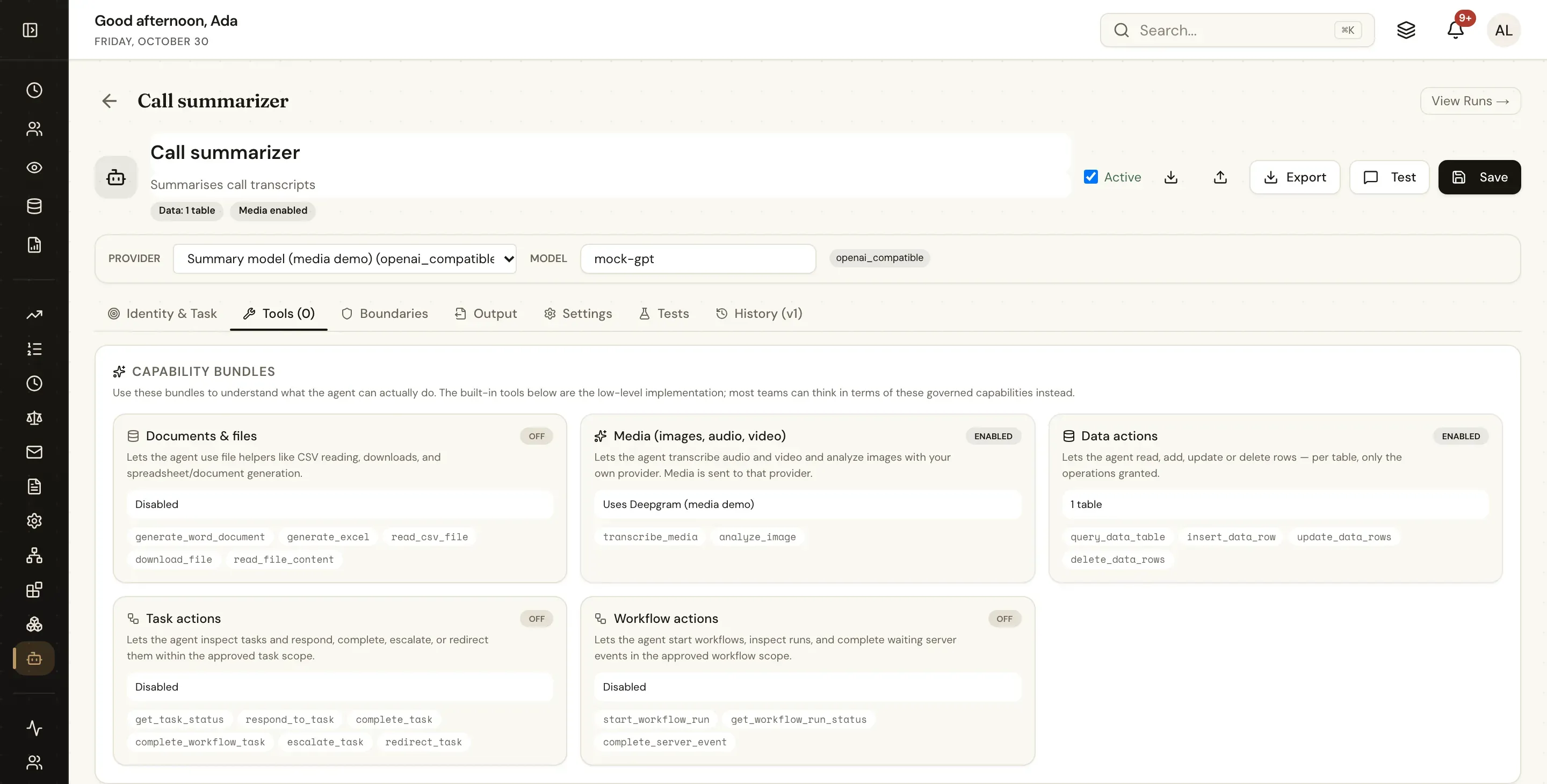
In a workflow you don't need the agent tools: transcribe or read the file with a media step and put the result in a Run Agent prompt, or hand the image itself to the agent with Run Agent's Files.
How-to guides
- Quick start: transcribe a recording in 3 minutes
- Transcribe a meeting recording and email the summary
- Blur faces and ID numbers in photos before storing
- Redact PII from a support call recording
Related
- Document actions — Word, Excel, PowerPoint and PDF; scanned pages with OCR. Redact Image and Redact Video use the same information types as Redact Document.
- Attachments — collect recordings and photos with a form; they arrive as file objects the media steps take.
- AI agents and the Run Agent step — summarise a transcript or classify a photo's description.