Workflows
Versions, runs and the queue
Drafts, published versions, running a workflow by hand with its inputs, run statuses, migrating live instances, the durable queue and run history.
Drafts and versions
Editing a workflow changes its draft. Publishing freezes the draft as a numbered version and makes it the one new runs use; runs already in progress finish on the version they started with, unless you migrate them.
usertasks workflows definition <id> -o json > wf.json     # the draft, ready to edit
usertasks workflows update <id> -f wf.json                # save the draft (changed: false if identical)
usertasks workflows publish <id> --set notes="Add CFO step"
usertasks workflows versions <id>                         # history with notes
usertasks workflows version <id> <version-id> -o json     # one version's definition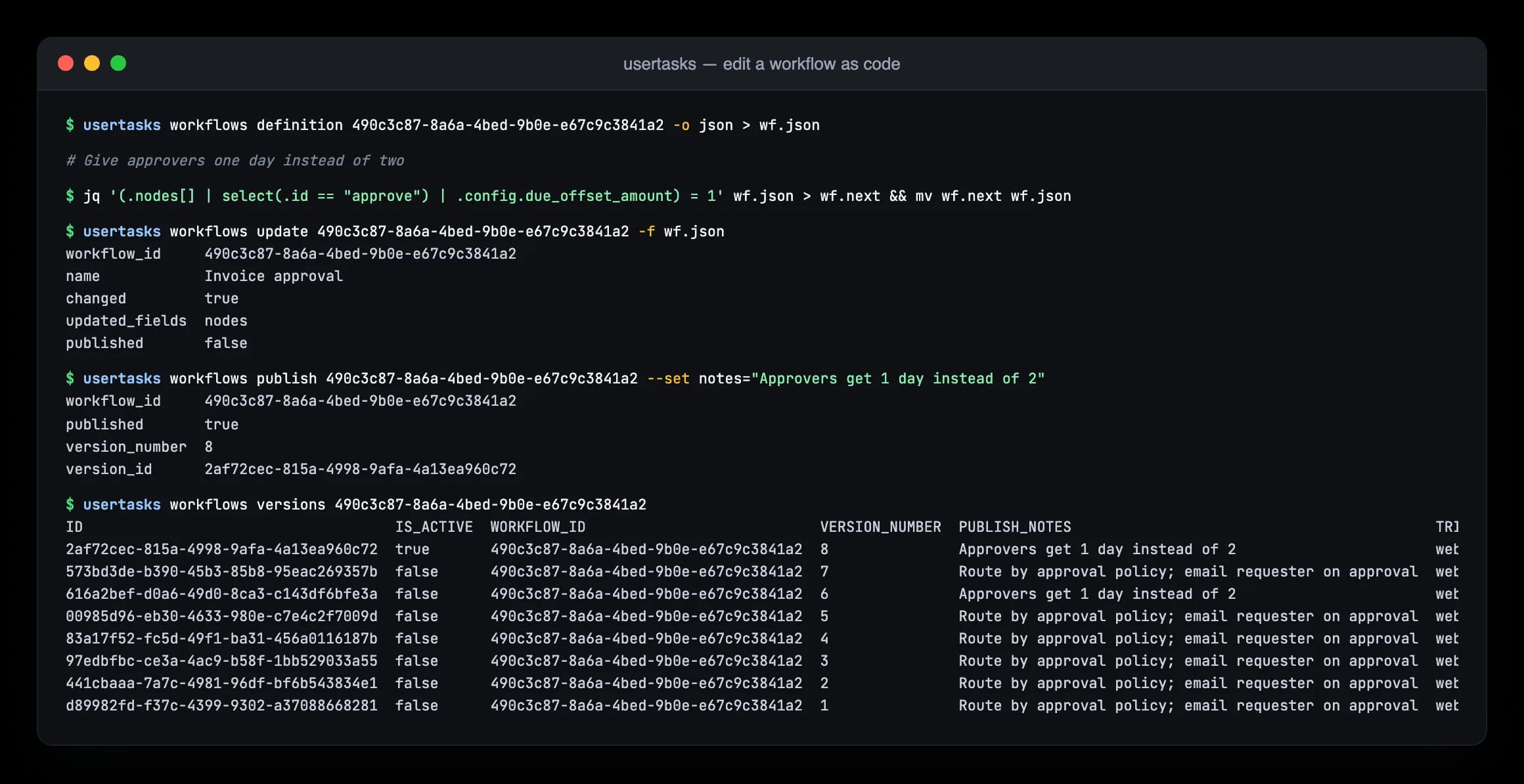
Running workflows
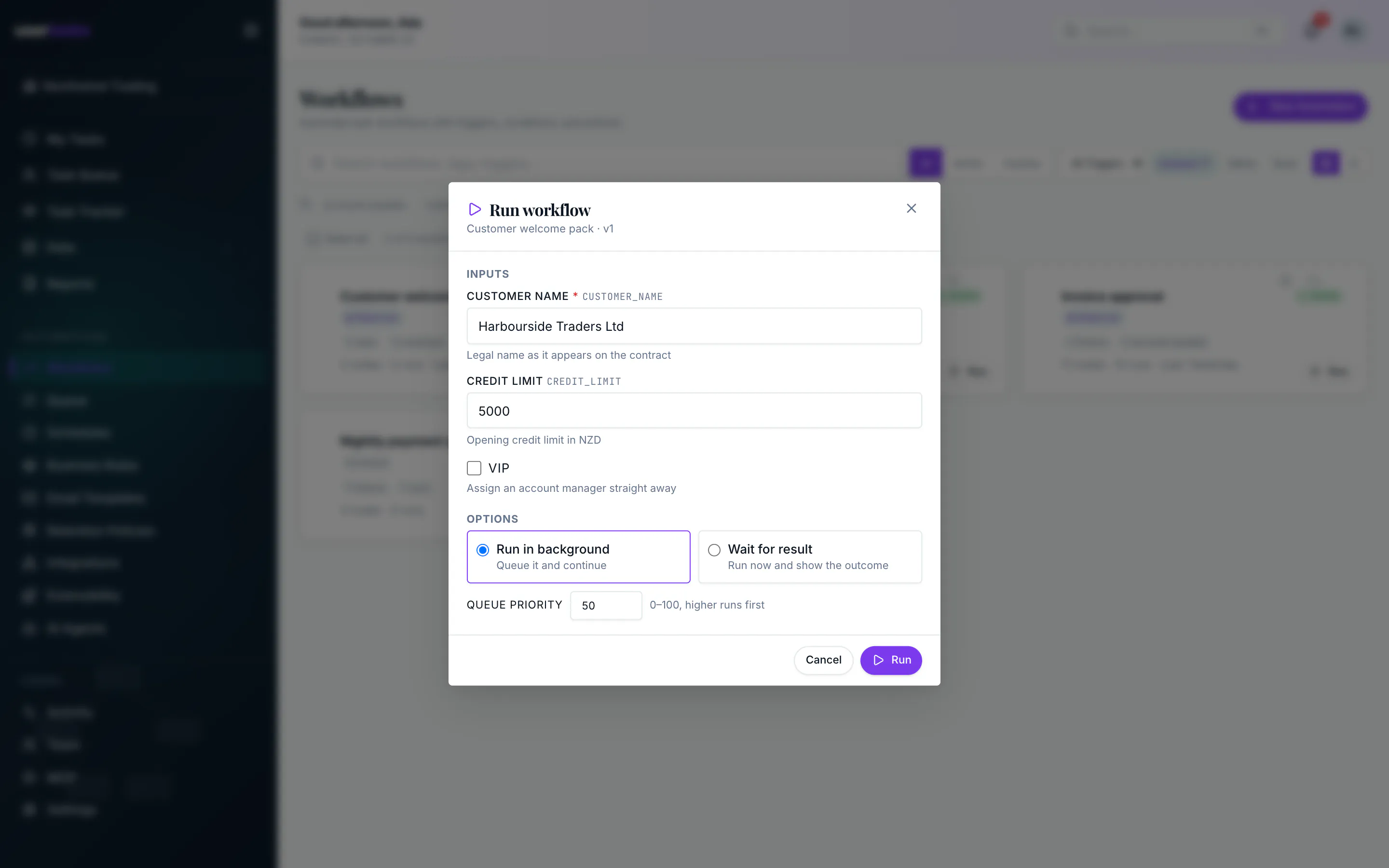
Any active, published workflow can be started by hand, whatever its trigger. Its inputs are the workflow variables of the published version (declare them in the designer's Workflow Variables panel): each has a type, an optional default and description, and can be marked Required input. A text variable can be refined to a date, date and time, email, URL or a choice list.
| Variable | Input field |
|---|---|
| String | Text (or date, date & time, email, URL, choice list when set) |
| Number | Number |
| Boolean | Checkbox (true / false) |
| Object | JSON |
In the app: choose Run on the workflow's row in Automations → Workflows, or in the designer header. The dialog shows a form for the inputs, with defaults filled in, descriptions as help text and required inputs marked. Run in background (the default) queues the run with an optional priority (0-100); Wait for result runs it now and shows the final status and step outputs. Either way you get a link to the run. The button is disabled until the workflow is published and active, and only shown to people with the Activate workflows permission (workflows.activate).
From a terminal, usertasks workflows run reads the inputs, converts each --input key=value to the input's type and asks for missing required inputs. Without a terminal (scripts, CI) it lists the missing inputs and exits with code 2 instead.
usertasks workflows inputs <id>                                       # the inputs: key, type, required, default
usertasks workflows run <id> --input customer="Acme Ltd" --input amount=1200
usertasks workflows run <id> -f inputs.json --wait                    # run now, print status and step outputs
usertasks workflows run <id> --input customer=Acme --priority 80      # queued ahead of other jobs
Over REST, GET /api/v1/workflows/{id}/inputs returns the fields (key, label, type, required, default, description, options) and POST /api/v1/workflows/start starts the run:
curl -X POST "$USERTASKS_URL/api/v1/workflows/start" \
  -H "Authorization: Bearer $USERTASKS_API_KEY" -H "Content-Type: application/json" \
  -d '{"workflow_id":"<id>","variables":{"customer":"Acme Ltd","amount":"1200"},"async":true,"priority":50}'
Values are checked against the inputs and converted to their type ("1200" becomes 1200 for a number input). A missing required input or a value of the wrong type is a 400 with one entry per field in details, and nothing starts. Variables that are not declared inputs are passed through unchanged and listed in warnings; a workflow without inputs accepts any variables. MCP has workflows_inputs_get and workflows_start.
Run statuses
| Status | Meaning |
|---|---|
running | Executing now |
waiting_for_event | Paused: waiting on a User Task, a timed delay or an external event |
paused | Paused by an operator |
completed | Finished (including End Workflow) |
failed | A node failed with onError: stop |
cancelled | Cancelled by an operator or the API |
migrated | Closed by a live instance migration; a new run continues it on another version |
Migrating live instances
A live instance is a run that is waiting (on a User Task, a timed delay or an external event) or paused. When you publish a new version, live instances stay on the version they started with. Migrating moves them to another version:
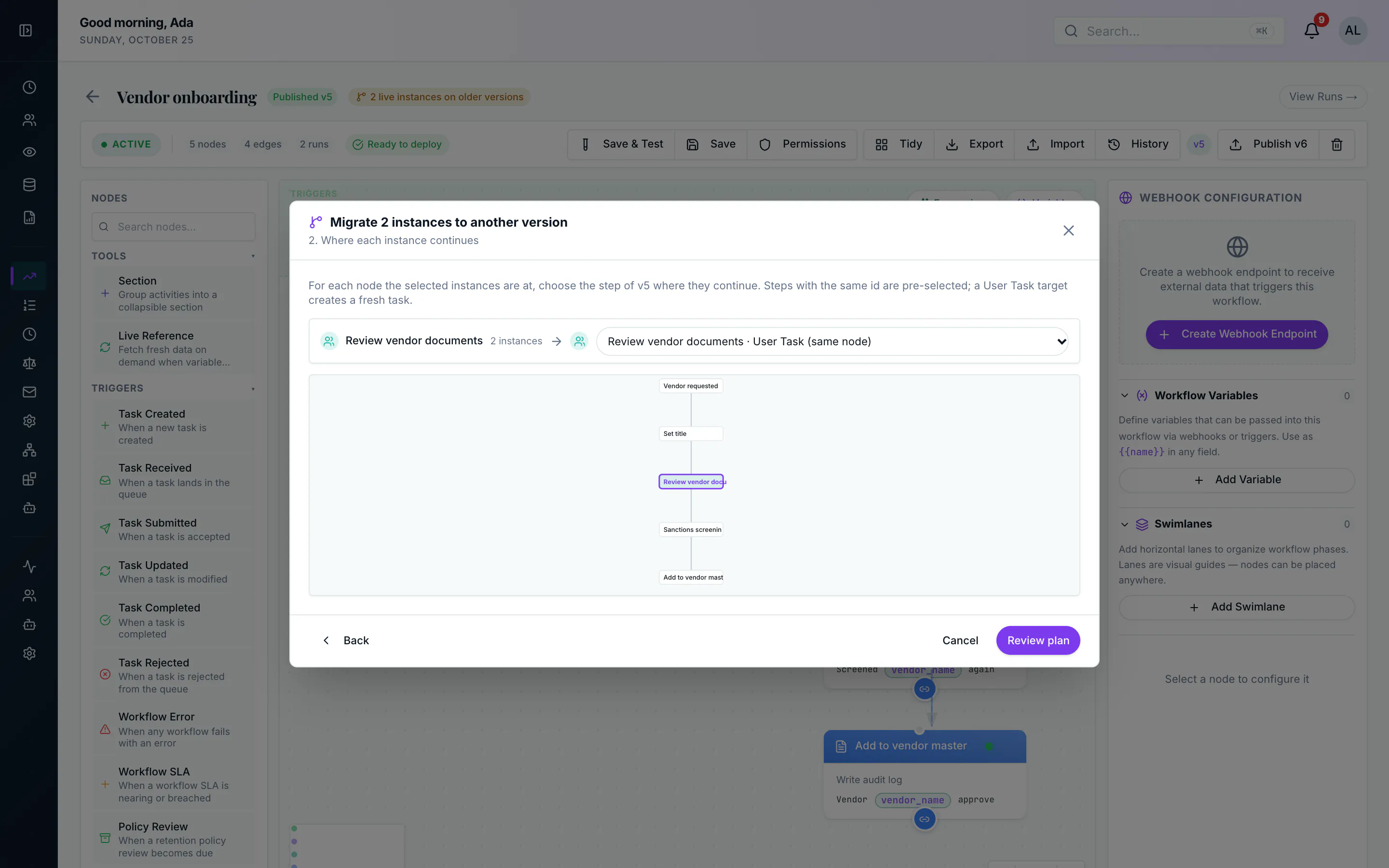
- You pick the target version and, for each node the instances are at, the node in that version where they continue. A node with the same id is pre-selected; you can choose any step.
- The old instance is closed out: its status becomes
migrated, its open task is cancelled (the task history records it) and any queued resume or timed wake-up for it is dropped. - A new run starts on the target version at the chosen node. It carries the old run's variables (new variables of the target version get their defaults), its task and its trace id, and links back to the old run. A User Task at the target creates a fresh task; any other step runs straight away.
Both runs are audited and emit a workflow.run.migrated event with the ids of the other run. The run pages show Migrated to → and Migrated from ← banners.
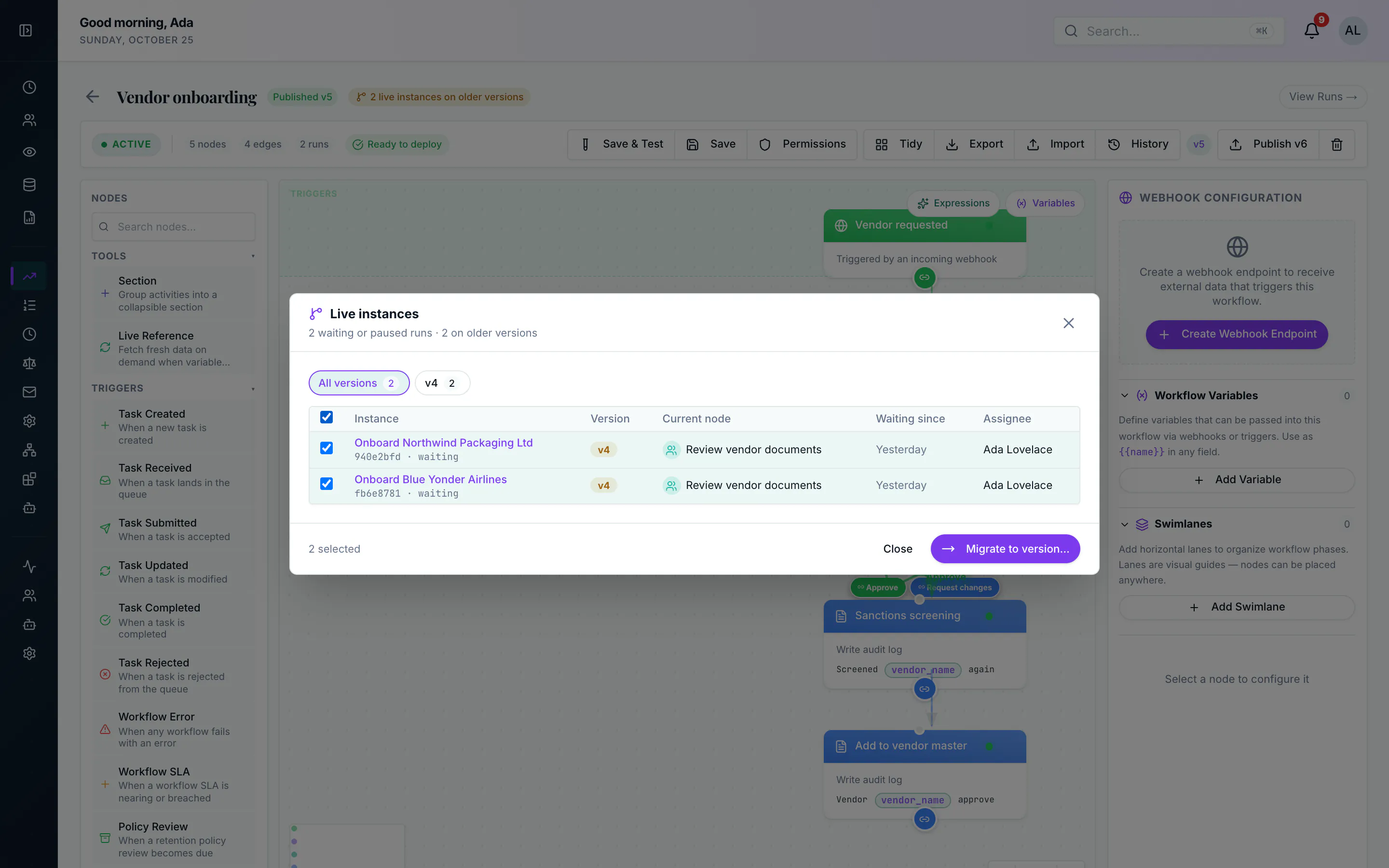
In the app: the workflow designer shows a badge such as 2 live instances on older versions. It opens Live instances: each instance's current node, version, waiting time and the assignee of its open task, with counts per version (also shown in Version history). Select instances and choose Migrate to version….
The wizard asks for the target version and the target node for each current node, with a preview of the target graph, then shows a dry-run review before anything changes. Migrating more than ten instances asks you to type the number to confirm.
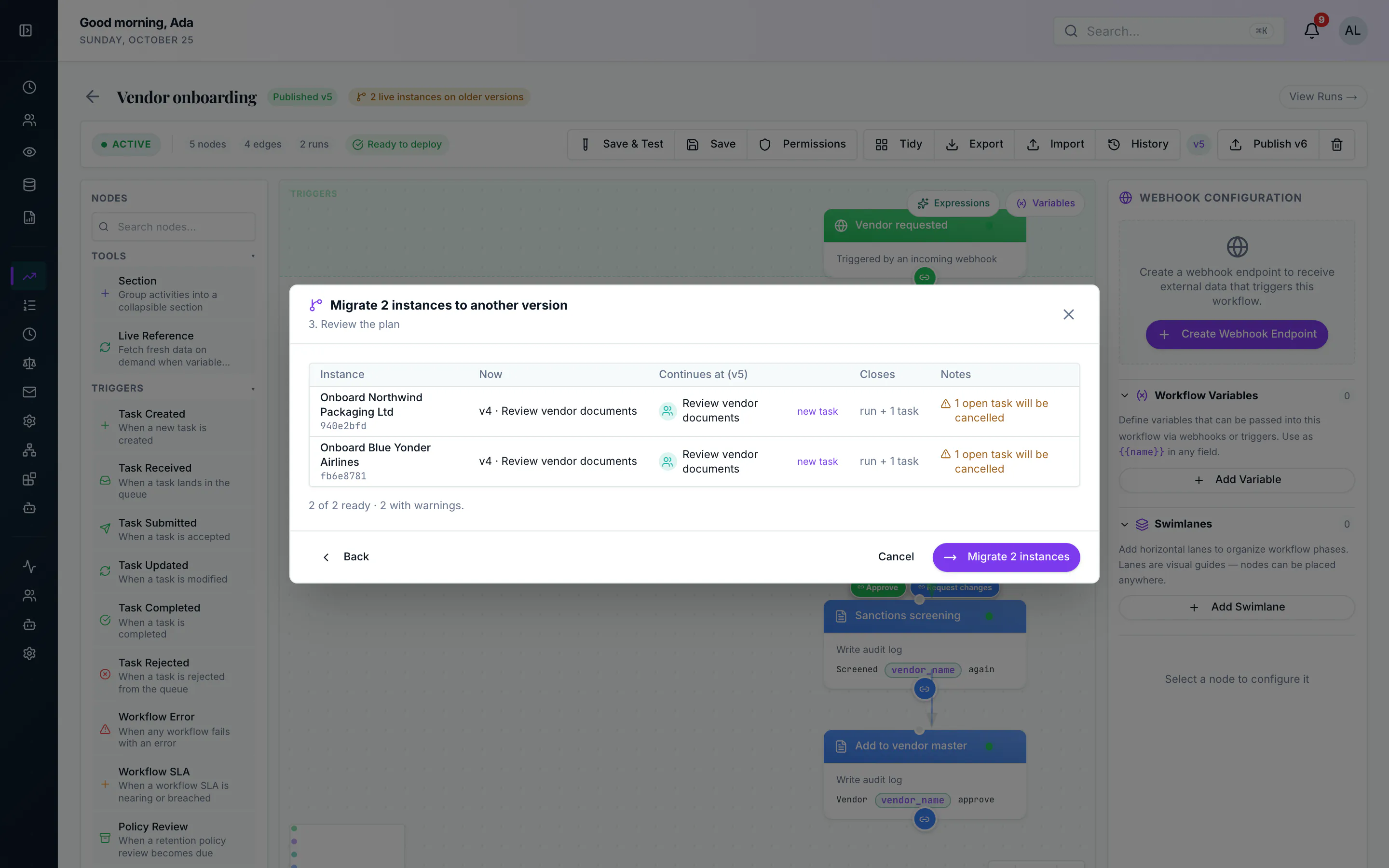
A single run can be moved with Move to version… on its run page or in the workflow queue.
Every instance is planned and migrated on its own. An instance whose target node does not exist is blocked and left alone, and one that moved on in the meantime (its task was completed, or someone resumed it) is reported as a conflict and left alone. The review warns about variables the target path uses that the instance does not have, and about resumes that were already queued.
usertasks workflows instances <id>                                  # live instances, current node, version
usertasks workflows migrate-instances <id> --to <version-id> --all --dry-run
usertasks workflows migrate-instances <id> --to <version-id> --from <old-version-id> \
  --map review=screen                                                # instances at "review" continue at "screen"
usertasks workflows migrate-instances <id> --to <version-id> --run <run-id> --target approve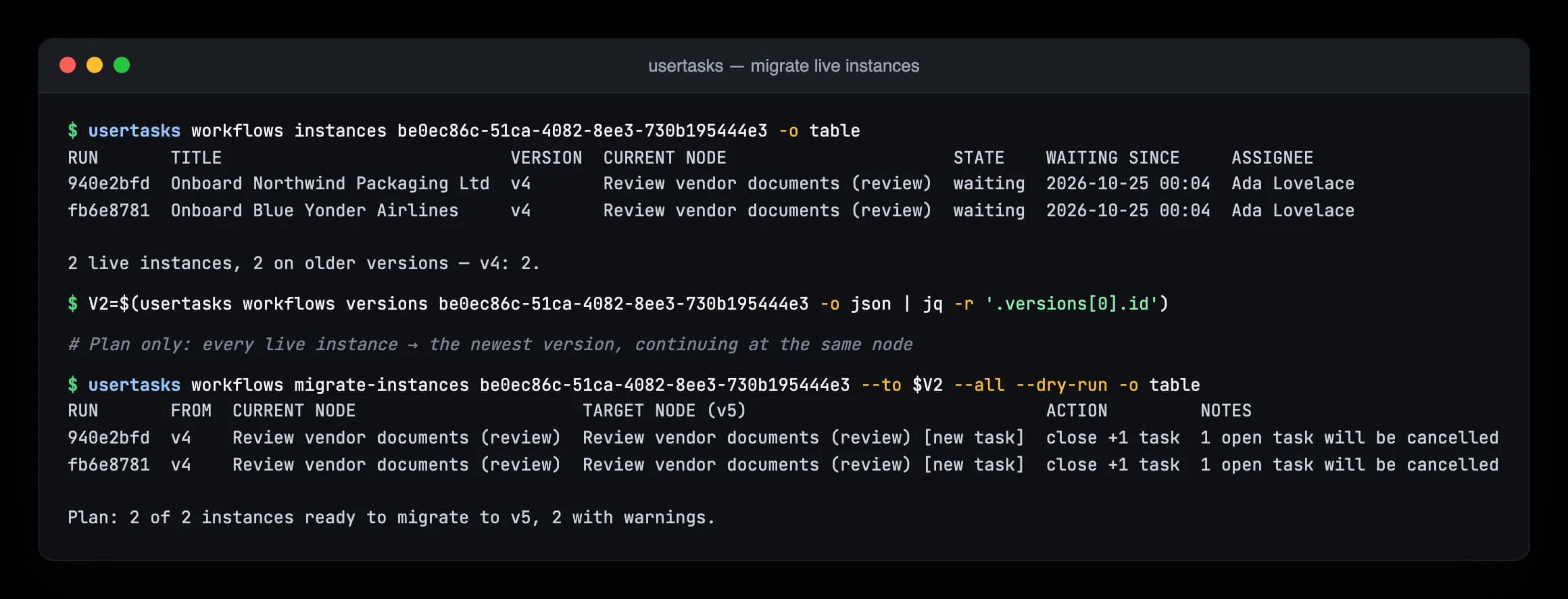
The CLI always plans first, prints the plan and asks before migrating (--yes skips the prompt). The target node for each instance is --map for its current node, else --target, else the node with the same id. Over REST it is POST /api/v1/workflows/{id}/instances/migrate with to_version_id, the instances (run_ids, from_version_id or all_active), optional node_map and default_target_node_id, and dry_run. MCP has workflows_instances_list and workflows_instances_migrate. One request handles up to 500 instances. Migrating needs the Migrate live runs permission (workflows.manage_runs; Owner, Admin and Manager have it by default, and OAuth apps get it with workflows:write). Listing needs View runs.
The queue
Asynchronous starts, triggered runs, resumes after tasks and timed waits go through a durable queue in Postgres. The processor claims jobs in batches and runs up to WORKFLOW_CONCURRENCY (default 5) at once per invocation, re-kicking itself while work remains. Enqueuing code kicks it immediately; pg_cron calls it every minute as a safety net.
usertasks queue list --status failed
usertasks queue action <job-id> --set action=retry
Run history
Each run records its trigger, variables, every step (status, duration, input and output, capped in size), logs and the execution path. Open it in Automations → Runs, fetch it with usertasks runs get <id>, or follow its events with usertasks logs tail --run <id>. Finished queue rows are kept for QUEUE_RETENTION_DAYS (default 7); run history follows your retention policies.